SMS to customers
How to switch on the SMS module, choose the order states in which SMS are sent, edit the texts, and what SMS cost.
Besides e-mails, Foxdeli can also send your customers SMS about the status of their order. SMS are especially useful when you need the customer to notice the message right away and act on it – for example, when a parcel is waiting at a pickup point or it is the last day to pick it up. SMS is a paid module: you pay only for the SMS that are sent, and we bill them together with your subscription.
What SMS need in order to be sent
- the SMS module switched on,
- “Always” (or “Fallback only”) selected for the chosen states in the workflow, and an active workflow,
- an active SMS template for the order's market,
- the customer's phone number on the order.
If any of these is missing, the SMS is not sent and you pay nothing for it. You will see the reason in the order timeline.
How to switch on SMS
1. Switch on the SMS module
- In the main menu, open “Modules” and on the SMS card click “Pricing and settings” (direct link).
- Turn on the “Send SMS to customers” switch.
- The “Switch on the SMS module?” dialog shows the workflow states in which SMS can already be sent. Confirm with the “Switch on the module” button.
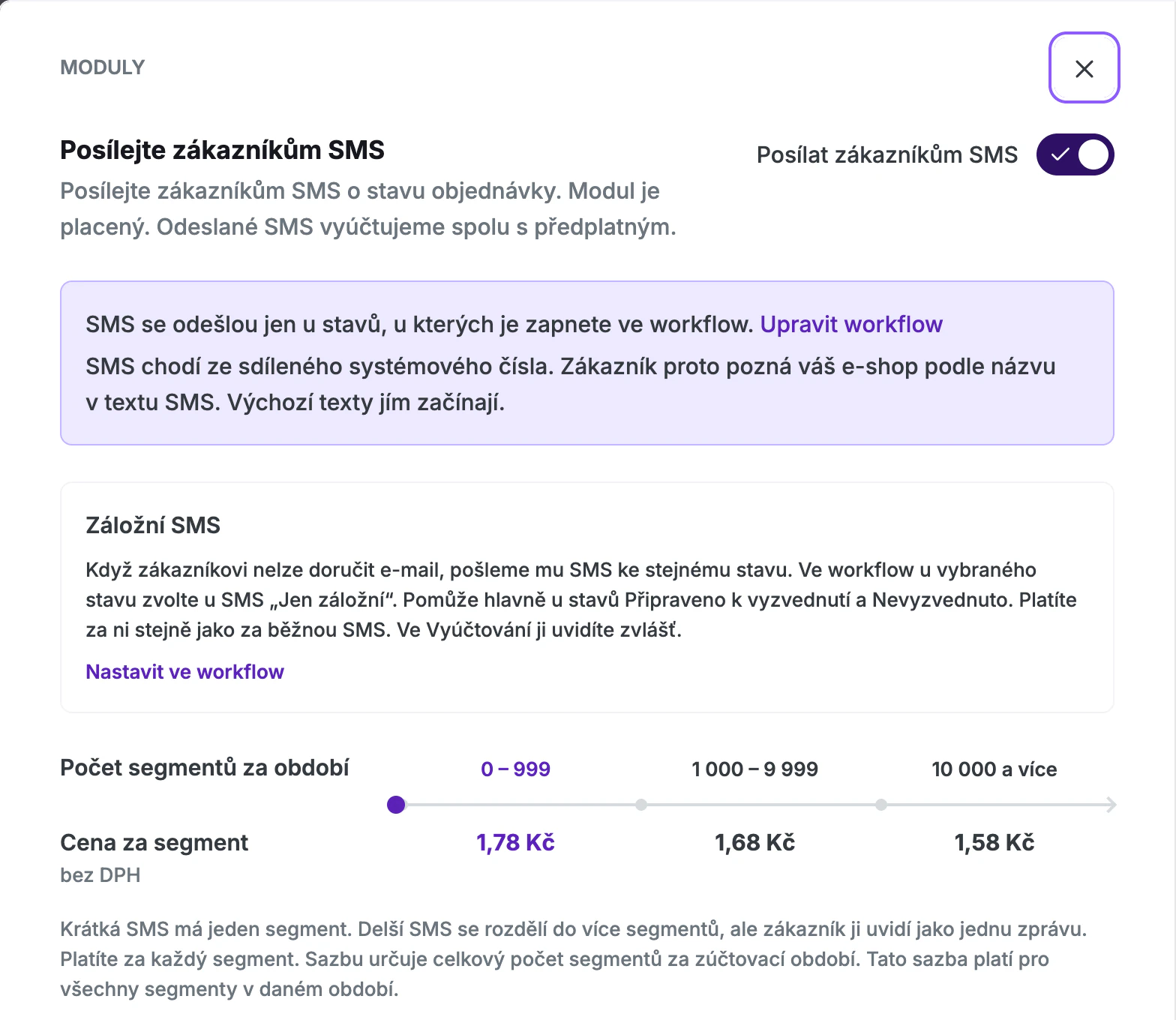
Switching on the module by itself sends nothing. SMS are sent only in the states you select in the workflow.
The module is switched on and off by your company administrator and applies to the whole company. Other users can see the price list and the module status in Modules. If the switch cannot be turned on, the reason is shown right below it – for example, there is no active licence, or the module is not yet available for the currency of your subscription.
2. Choose the states in the workflow
- Open Communication → Workflow and edit the workflow.
- For the state in which the customer should receive an SMS, choose one of the options in the “SMS” row:
- “Off” – no SMS is sent. This is the default for all states.
- “Always” – the SMS is sent when the order reaches this state.
- “Fallback only” – the SMS is sent only if the e-mail for the same state cannot be delivered to the customer. For details, see Fallback SMS when an e-mail is not delivered.
- Save your changes with the “Save” button.
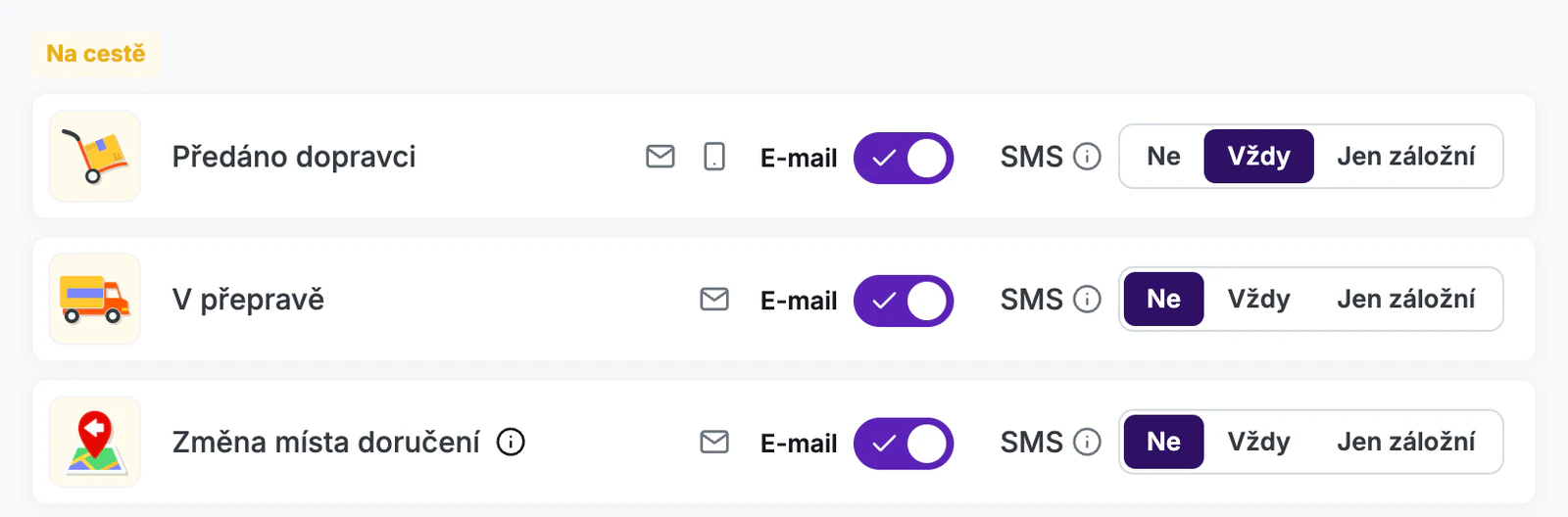
The “Always” and “Fallback only” options can be selected only while the module is on. SMS and e-mail are set independently for each state – you can send both, just one of them, or SMS only as a fallback.
SMS pay off most in states where the customer has to act so that the parcel is not returned: “Ready for pickup”, “Last pickup day” and “Not picked up 1–5 days”.
3. Check the SMS template
You will find the SMS texts in Communication → SMS. While the module is off, this menu item is grayed out and leads to Modules.
An SMS is sent only if there is an active SMS template for the order's market. If the market has no active template of its own, the active template of the e-shop's default market is used. Without an active template, no SMS is sent – not even with the default text.
The list usually contains the “Default SMS template”, which Foxdeli created automatically. If its status is “Active”, it sends the default texts and you don't need to set up anything else.
Editing SMS texts
- In Communication → SMS, open a template or create a new one with the “Create SMS template” button.
- In the top bar, select the workflow state and the language. The state menu shows whether you send an SMS in that state in the workflow. States with custom text are labeled “Edited”.
- Edit the text. Below it, you can insert a tracking link (“Insert tracking link”), an emoji (“Insert an emoji”) or a variable (“Insert a variable”).
- Save with the “Save” button. Then switch a new template on with the “Activate” button.
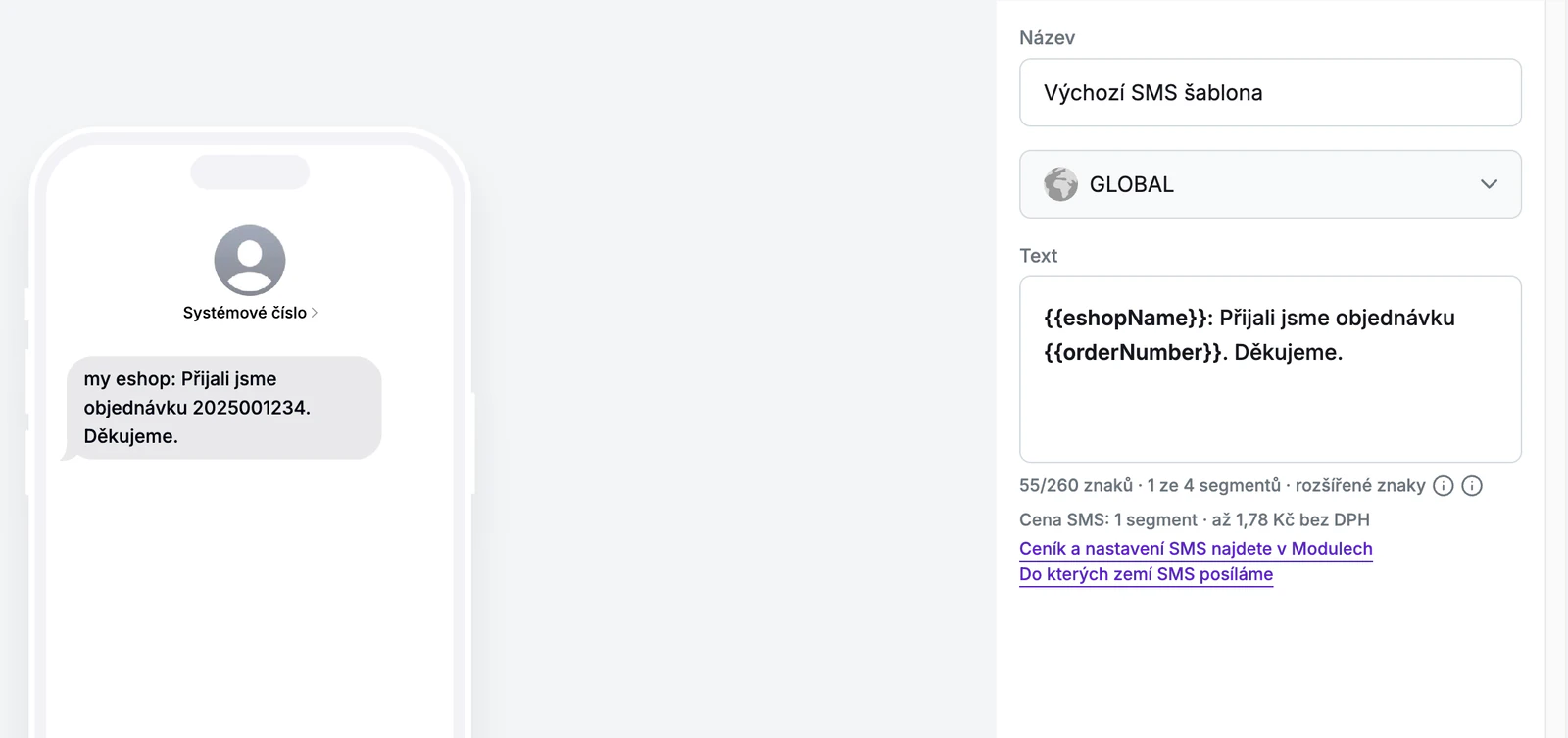
- In states where you don't edit the text, the default text is sent. You can return to it at any time with the “Reset to default settings” button.
- Only one SMS template can be active per market. When you activate another one, the current one is deactivated.
- An active template cannot be deleted. Deactivate it first.
Variables
| Variable | What it fills into the SMS |
|---|---|
| Eshop Name | The store's display name from Settings → Stores (“Display name”). If you haven't filled it in, the store name. |
| Order number | The order number from your e-shop. |
| Tracking Page Link | A shortened link to the order tracking page. The “Insert tracking link” button inserts it too. |
| Customer name | The customer's name from the order. |
| Carrier Name | The carrier's name in the language of the SMS. |
| Pickup point name | The name of the pickup point the parcel is heading to. |
Important: if a variable has no value for an order (for example, the pickup point name for home delivery), the SMS is not sent. Use variables only in states where the order always has them.
Sender and tracking link
SMS are sent from a shared system number, not from your number or under your name. Customers therefore recognize your e-shop by its name in the text – the default texts start with it. When you edit the text, keep the e-shop name in it.
We shorten the tracking link in the SMS so that it takes up fewer characters. It leads to the same Track & Trace page as the link in the e-mail. You can see how many customers clicked it in SMS statistics.
Language
The customer receives SMS in the same language as e-mails, that is, in the language of the order. The default SMS texts are available in 24 languages.
SMS length and segments
A short SMS has one segment; a longer one has several. The customer sees it as a single message, but you pay for each segment. How many characters fit into a segment depends on which characters the text contains:
| The text contains | 1-segment SMS | Longer SMS, per segment |
|---|---|---|
| standard characters only (no diacritics) | 160 characters | 153 characters |
| extended characters (diacritics, emoji) | 70 characters | 67 characters |
- A single extended character – for example č, ř, ž, á or an emoji – is enough for the whole SMS to be counted in extended characters. This also applies to variable values, such as a customer name with diacritics. The default Czech texts contain diacritics.
- Some characters, such as €, count as two. An emoji also takes up two characters.
- An SMS can have at most 4 segments. The editor won't accept a longer text.
- For variables, the editor counts with their longest possible values, such as a long pickup point name. The actual SMS may therefore turn out shorter than the editor shows.
Below the text, the editor shows the number of characters and segments and the price of the SMS. The phone preview marks where each segment begins.
Pricing
You pay for every segment sent. The price per segment depends on how many segments you send in total during the billing period, to all countries combined. The tier you reach applies to all segments in that period.
| Segments per period | CZK | EUR | USD |
|---|---|---|---|
| 0 – 999 | CZK 1.78 | €0.076 | $0.085 |
| 1,000 – 9,999 | CZK 1.68 | €0.071 | $0.080 |
| 10,000 and more | CZK 1.58 | €0.067 | $0.075 |
Prices are per segment, excluding VAT, in the currency of your subscription. Example: for 600 segments in a period, you pay 600 × 1.78 = CZK 1,068 excl. VAT. With 1,200 segments, the lower price applies to all of them: 1,200 × 1.68 = CZK 2,016 excl. VAT.
Sending over 10,000 segments a month? Contact us and we will agree on a custom price.
You can see your usage and the estimated amount for the current period on the SMS card in Modules. Your company administrator will find a detailed breakdown in Billing → Subscription.
SMS abroad
We send SMS to most countries in the world, and each country has its own prices. The prices in the table above apply to Czech numbers. What counts is the country of the phone number, not the country of the e-shop.
You will find the prices for individual countries in the module panel under the “Show prices for other countries” link. Below it is the list “Where we do not send SMS yet”. SMS to these countries are not sent and you pay nothing for them.
Trial
During the trial, you get 10 SMS free. Every SMS counts, regardless of the number of segments. You can see how many are left in the module panel. Once they are used up, no more SMS are sent until the end of the trial. SMS sent after the trial ends are billed according to the price list.
Customer's phone number
- We take the number from the order in your e-shop. Without a number, the SMS is not sent. Make sure your customers enter it at checkout.
- We read a number without a country code as a number from the country the order is shipped to. If the country cannot be determined reliably, the SMS waits up to 6 hours for you to correct the number on the order in your e-shop, including the country code (for example +420). After the correction, it is sent within a few minutes; otherwise it is not sent.
- We do not send SMS to landlines.
You can see what happened to each SMS – whether it was sent, whether it was delivered, or why it was not sent – in the order timeline. Learn more in E-mails and SMS in the order timeline and Alerts about undelivered messages.
When SMS are sent
- The SMS is sent as soon as the order or parcel reaches a state set to “Always”, at any time of day.
- The customer receives an SMS for a given state at most once (for parcel states, once per parcel), even if the state repeats – for example, when the estimated delivery date changes again.
- If the parcel has meanwhile moved to another state and the message would no longer be current, we don't send the SMS.
Switching off the module
You switch off the module with the same switch in Modules. SMS stop being sent, and those that would have been sent in the meantime are not sent later. For states where you leave “Always” or “Fallback only” in the workflow, you will see “SMS not sent” in the timeline. To avoid this, choose “Off” for them. SMS sent before you switched the module off are billed together with your subscription.
FAQ
- Why didn't the customer receive the SMS? Open the order and check the timeline. Most often, the phone number is missing, the market has no active SMS template, the state is set to “Off” in the workflow, or the module is switched off.
- Can the customer reply to the SMS? SMS are sent from a shared system number, so replies won't reach you. If you want customers to get in touch with you, include your contact details in the text.
- Why does the number of SMS in Analytics differ from Billing? Analytics counts SMS, Billing counts segments. One longer SMS has several segments.
Still have questions?
Contact usMore articles in this category
- Billing address in e-mails by delivery method
- Brick-and-mortar pickup places for personal pickup
- Campaigns – a banner in e-mails and on the Track & Trace page
- Delayed due to carrier time constraints – a workflow status
- Duplicating templates, campaigns and workflows
- E-mails and SMS in the order timeline
- Emoji in the e-mail, Track & Trace and SMS editors
- Fallback SMS when an e-mail doesn't arrive
- How to turn on e-mail communication: working with Workflow
- Orders in the Seznam Email order overview
- Preview text of delivery e-mails
- Sending e-mails from your own domain (DKIM verification)
- SMS statistics
- Withdrawal from contract – button in delivery e-mails
- Recommended products
- UTM parameters in links
- Connecting your e-shop to Foxdeli – Shopify app
- Getting started with Foxdeli
- Connecting multiple stores to one account
- Payment details in the order summary
- Attachments in e-mails
- Auto-filling data in the e-mail subject
- Customer PIN code in the e-mail
- Info banner
Articles in this category
- Billing address in e-mails by delivery method
- Brick-and-mortar pickup places for personal pickup
- Campaigns – a banner in e-mails and on the Track & Trace page
- Delayed due to carrier time constraints – a workflow status
- Duplicating templates, campaigns and workflows
- E-mails and SMS in the order timeline
- Emoji in the e-mail, Track & Trace and SMS editors
- Fallback SMS when an e-mail doesn't arrive
- How to turn on e-mail communication: working with Workflow
- Orders in the Seznam Email order overview
- Preview text of delivery e-mails
- Sending e-mails from your own domain (DKIM verification)
- SMS statistics
- Withdrawal from contract – button in delivery e-mails
- Recommended products
- UTM parameters in links
- Connecting your e-shop to Foxdeli – Shopify app
- Getting started with Foxdeli
- Connecting multiple stores to one account
- Payment details in the order summary
- Attachments in e-mails
- Auto-filling data in the e-mail subject
- Customer PIN code in the e-mail
- Info banner