Payment details in the order summary
Setting up payment details.
In Foxdeli, you can point the customer to a payment gateway and show them the payment details, including a QR code, in case they haven’t paid for their order yet and no longer have the payment details from the e-shop’s page at hand.
That’s why Foxdeli lets you fill in your e-shop’s payment details, which are then shown in the e-mail.
Note: these details are only shown in the “Order accepted” e-mail, and only if the customer chooses online payment.
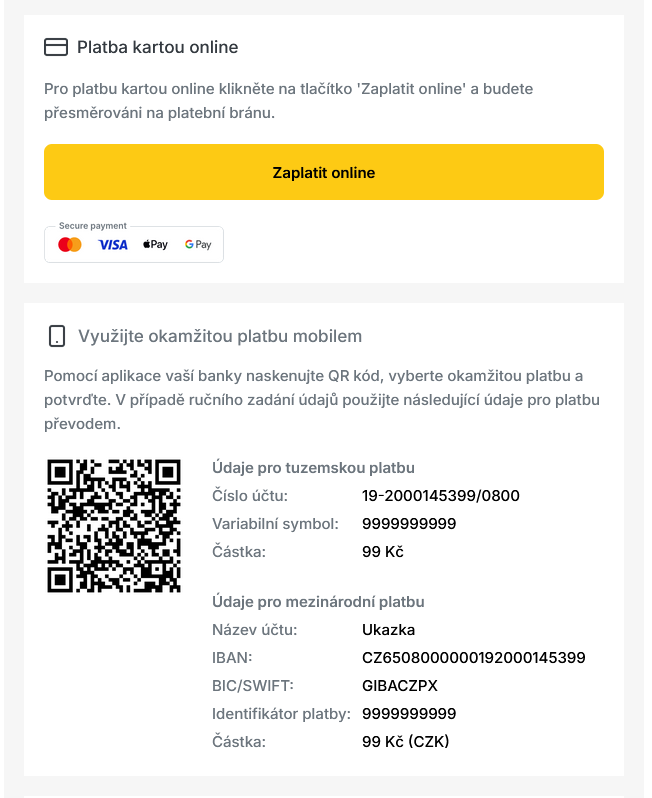
What do the payment details look like in the e-mail?
The customer receives the details you filled in in the e-mail with the “Order accepted” status. It also contains a link to the payment gateway and, depending on your choice, the account number and a QR code.
Where and how do I enter the payment details?
You enter the payment details in “Settings”: click the e-shop icon and then the “Payment details” section, or use this link: https://my.foxdeli.com/en/settings/payment.
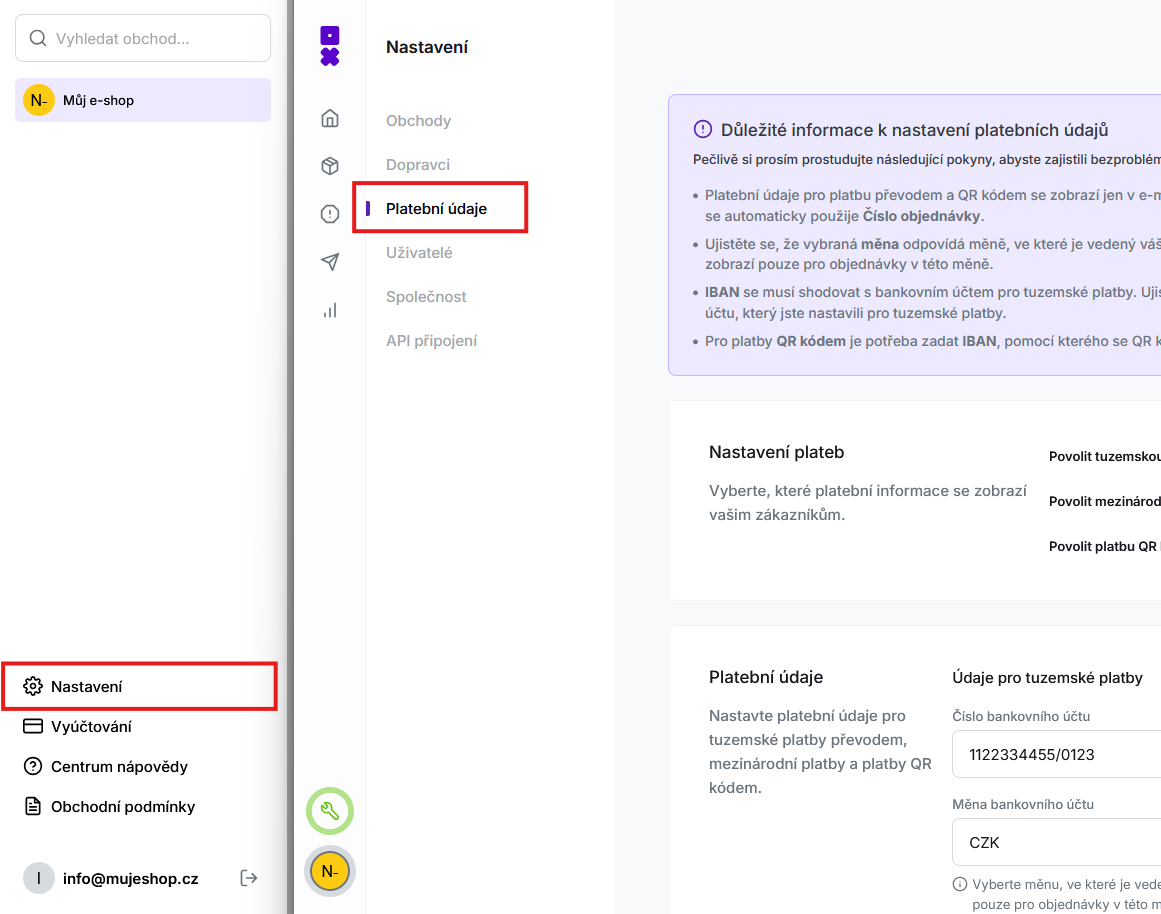
Here, tick the options you want to show in the e-mail. Note: you can only enter an account in a single currency. This is not about two accounts in different currencies. By international payment, we only mean the international format of the same account that is used for the domestic payment.
Here, tick the options you want to show in the e-mail. Note: you can only enter an account in a single currency. This is not about two accounts in different currencies. By international payment, we only mean the international format of the same account that is used for the domestic payment.
Here, tick the options you want to show in the e-mail. Note: you can only enter an account in a single currency. This is not about two accounts in different currencies. By international payment, we only mean the international format of the same account that is used for the domestic payment.
Here, tick the options you want to show in the e-mail. Note: you can only enter an account in a single currency. This is not about two accounts in different currencies. By international payment, we only mean the international format of the same account that is used for the domestic payment.
Here, tick the options you want to show in the e-mail. Note: you can only enter an account in a single currency. This is not about two accounts in different currencies. By international payment, we only mean the international format of the same account that is used for the domestic payment.
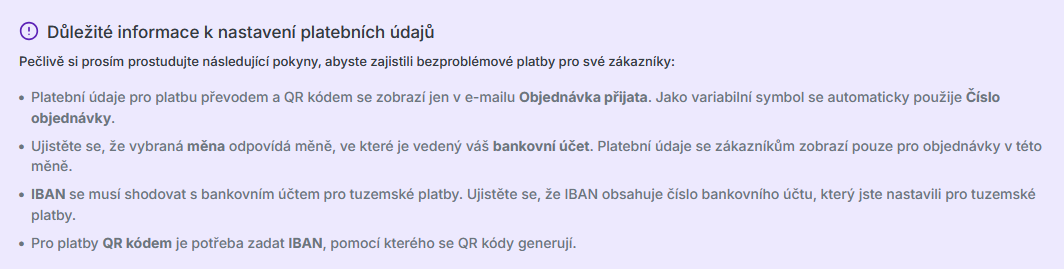
- “Enable domestic bank transfer”: Enter the account number in its domestic format in the fields.
- “Enable international payment (IBAN)”: Enter the same account in its international format in the fields, i.e. the IBAN and the SWIFT/BIC code.
- “Enable QR code payment (requires IBAN)”: A QR code for a quick bank transfer is generated in the e-mail.
Still have questions?
Contact usMore articles in this category
- Billing address in e-mails by delivery method
- Brick-and-mortar pickup places for personal pickup
- Campaigns – a banner in e-mails and on the Track & Trace page
- Delayed due to carrier time constraints – a workflow status
- Duplicating templates, campaigns and workflows
- E-mails and SMS in the order timeline
- Emoji in the e-mail, Track & Trace and SMS editors
- Fallback SMS when an e-mail doesn't arrive
- How to turn on e-mail communication: working with Workflow
- Orders in the Seznam Email order overview
- Preview text of delivery e-mails
- Sending e-mails from your own domain (DKIM verification)
- SMS statistics
- SMS to customers
- Withdrawal from contract – button in delivery e-mails
- Recommended products
- UTM parameters in links
- Connecting your e-shop to Foxdeli – Shopify app
- Getting started with Foxdeli
- Connecting multiple stores to one account
- Attachments in e-mails
- Auto-filling data in the e-mail subject
- Customer PIN code in the e-mail
- Info banner
Articles in this category
- Billing address in e-mails by delivery method
- Brick-and-mortar pickup places for personal pickup
- Campaigns – a banner in e-mails and on the Track & Trace page
- Delayed due to carrier time constraints – a workflow status
- Duplicating templates, campaigns and workflows
- E-mails and SMS in the order timeline
- Emoji in the e-mail, Track & Trace and SMS editors
- Fallback SMS when an e-mail doesn't arrive
- How to turn on e-mail communication: working with Workflow
- Orders in the Seznam Email order overview
- Preview text of delivery e-mails
- Sending e-mails from your own domain (DKIM verification)
- SMS statistics
- SMS to customers
- Withdrawal from contract – button in delivery e-mails
- Recommended products
- UTM parameters in links
- Connecting your e-shop to Foxdeli – Shopify app
- Getting started with Foxdeli
- Connecting multiple stores to one account
- Attachments in e-mails
- Auto-filling data in the e-mail subject
- Customer PIN code in the e-mail
- Info banner