Brick-and-mortar pickup places for personal pickup
How to set up your own pickup places in Settings – address, opening hours and exceptions, storage time, contact details, a note and a photo – and what customers see of them in e-mails and on the tracking page.
If your customers collect their orders directly from you – in your shop, at your warehouse or at your own pickup point –, set these locations up in Foxdeli as pickup places. Foxdeli then shows customers in delivery e-mails and on the tracking page where to collect the order, when you are open and how to contact you. Based on the storage time you set, it also keeps an eye on the last day for pickup.
Where to find it
- Open “Settings” and in the “E-shop” section choose “Pickup places”.
- Click “New pickup place”.
- Fill in the form (the fields are described below) and click “Create”.
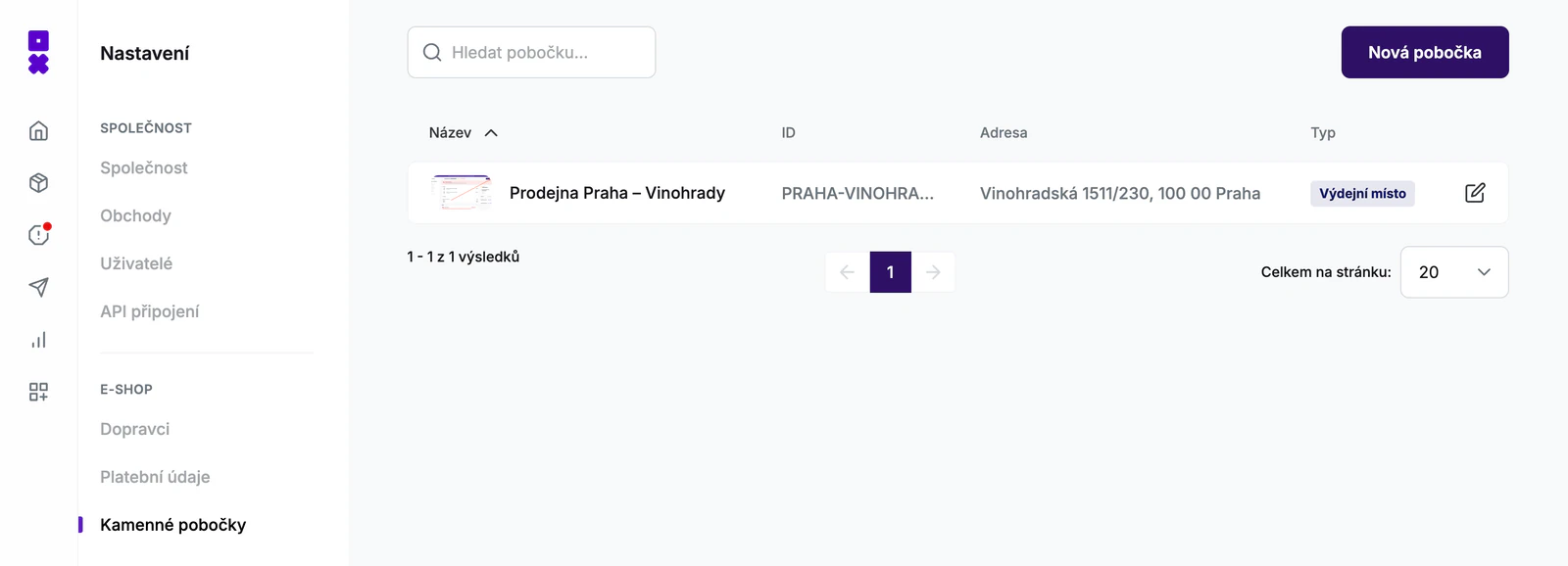
Pickup places belong to the store you currently have selected. If your account has several stores, set up pickup places for each of them separately.
What to fill in
Information
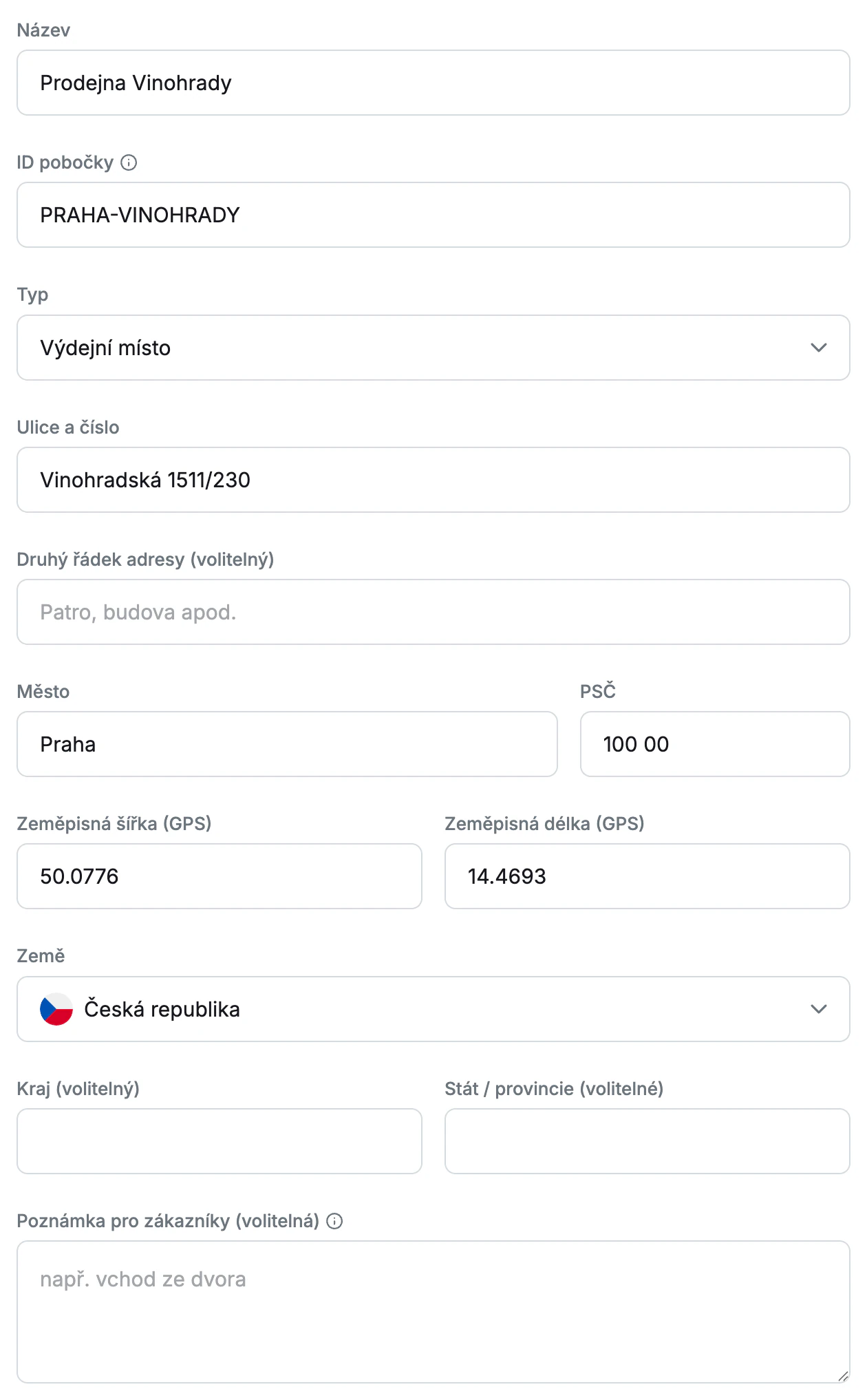
- “Name” – for example “Karlin store”. Customers see it in the e-mail and on the tracking page.
- “Pickup place ID” – this ID tells Foxdeli that an order is headed for this particular pickup place. It must match the pickup point identifier your e-shop sends with the order (see How orders are matched to a pickup place). It must be unique within a country. If another of your pickup places already uses it, you will see the message “A pickup place with this ID already exists in this country.”
- “Type” – “Pickup place”, “Parcel box” or “Address”. For a regular shop, leave “Pickup place”.
- Address – “Street and number”, “City”, “ZIP code” and “Country” are required. Fill in “Address line 2 (optional)” (floor, building), “Region (optional)” and “State / province (optional)” only if needed.
- “Latitude (GPS)” and “Longitude (GPS)” – required. The coordinates give customers a “Show on map” link, and Foxdeli uses them to determine the pickup place’s time zone. Enter the coordinates as decimal numbers, for example 50.0901 and 14.4427.
- “Note for customers (optional)” – a short practical tip, for example “entrance from the courtyard”. Customers see it in the e-mail and on the tracking page, so don’t put anything internal here.
Storage time
Set how many days the parcel waits for the customer at the pickup place. In the Number of days after the “Ready for pickup” status field, enter a whole number from 1 to 365. In the “Unit” field, choose:
- “Calendar days” – every day counts, including weekends and days when you are closed.
- “Days the place is open” – only the days when the pickup place is open according to its opening hours and exceptions count.
How Foxdeli works with the storage time is described in Last day for pickup.
Contact
The “Phone” and “Email” fields are required. Enter the direct contact details of the pickup place – customers see them in the e-mail and on the tracking page and can click the e-mail address right away.
Photo
The photo is optional, but it helps customers recognize the pickup place. Upload an image (JPG, PNG…) of up to 10 MB, ideally a JPG with a 16:9 aspect ratio. The photo is uploaded only when you click “Create”, or “Save changes” for an existing pickup place. You can replace it with a different one later, but you can’t remove it.
Opening hours
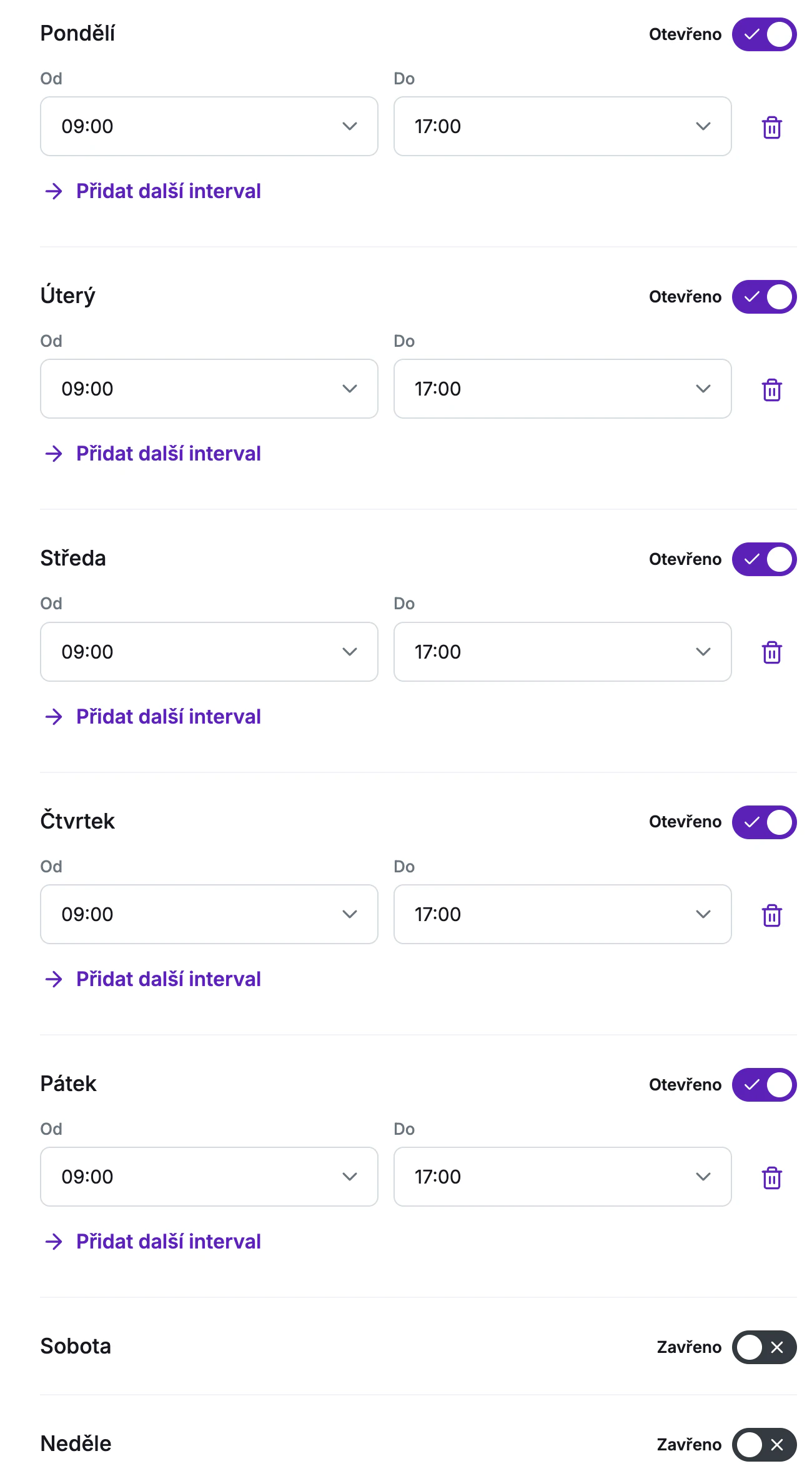
Each day of the week has an “Open” / “Closed” switch. For a new pickup place, all days are closed – just switch on the days when you are open. A day you switch on gets the default hours 9:00–17:00, which you can change in the “From” and “To” fields.
- Times are selected in 15-minute steps. If you close at midnight, choose 23:59.
- To set a lunch break, use “Add another interval”, for example 9:00–12:00 and 13:00–17:00.
- Intervals must not overlap, and the end must be later than the start.
Opening hours exceptions
Use exceptions for public holidays, vacations or stocktaking – in short, for days when your hours differ from usual.
- Click “Add exception”.
- Select the “Date” and fill in “Reason (optional)”, for example “Public holiday”.
- A new exception is set to “Closed”. If you are open that day, just at different hours, switch it to “Open” and set the times.
Each date can have only one exception. We recommend filling in the reason – customers see it with the exception. Past exceptions are not deleted automatically. Customers see all saved exceptions on the tracking page, so remove old ones (the “Remove exception” trash icon).
How orders are matched to a pickup place
Foxdeli assigns a pickup place to an order based on the “Pickup place ID” and the country. If the ID in the order doesn’t match any of your pickup places, the customer won’t see the pickup place details.
Custom API integration
In the order, send a pickup point of the PERSONAL_PICKUP carrier as the destination:
destination.type=PARCEL_SHOPdestination.parcelShop.carrier=PERSONAL_PICKUPdestination.parcelShop.countryCode= the country of the pickup place (the same as in the “Country” field)destination.parcelShop.parcelShopId= “Pickup place ID”
You’ll find the details in the Create order documentation. You can also create and edit pickup places through the Pickup places API, for example when you change opening hours from your own system.
Shoptet
In the “Pickup place ID” field, enter the ID of the personal pickup branch from Shoptet. We link pickup places to Shoptet shipping methods for you – you won’t find this in the app. To connect with Shoptet, write to us at support@foxdeli.com.
For Foxdeli to know when an order is ready for pickup and when the customer has collected it, you also need custom order statuses in Shoptet. The steps are described in the article Connecting your e-shop to Foxdeli – Shoptet module (section “Your own pickup places in Shoptet”).
What customers see
On the tracking page
In the “Pickup place” section, customers see the name and address of the pickup place, your note, phone, e-mail, photo and a “Show on map” button. Of the opening hours, only the current day is shown at first (“Today”); clicking “This week” reveals the whole week and your exceptions. The reason for an exception appears when you hover over the icon next to it. Which day counts as “today” depends on the pickup place’s time zone, not the customer’s.
Changes saved in the pickup place settings also show up on the tracking page for orders that are already on their way to the pickup place.
The section is shown if the tracking page template has the “Pickup place” module switched on (Communication → Tracking page → template → “Modules” tab).
In delivery e-mails
The e-mails contain the name and address of the pickup place with a “Show on map” link, your note, contact details, opening hours for the whole week including exceptions, and the photo. E-mails that have already been sent don’t change when you edit the pickup place.
The section is shown if the e-mail template has the “Pickup place” module switched on (Communication → Mailing → template → “Modules” tab). The module is switched on in new templates.
Tip: Don’t have regular opening hours because you only hand out orders by appointment, for example? Leave all days “Closed” and use the note to tell customers how to arrange the pickup. Customers then see your note highlighted instead of the opening hours. In that case, set the storage time in calendar days.
Last day for pickup
The storage time is counted from the moment the parcel gets the “Ready for pickup” status. From it, Foxdeli determines the last day for pickup:
- On the last day, the parcel gets the “Last day for pickup” status. In Workflow, you can attach the “Last pickup day” e-mail to it.
- Once the last day has passed, the parcel is marked as “Not picked up”. What happens to the parcel next is up to you.
- The “Not picked up 1 day” to “Not picked up 5 days” statuses count only the days when the pickup place is open.
Editing, searching and deleting
- The list of pickup places shows the name, ID, address and type. To edit a pickup place, use the button at the end of its row.
- Search – type at least two characters into the “Search for a pickup place…” field. The search covers the name, ID, address, phone, e-mail and note. Click a result to open the pickup place.
- Changes are saved with the “Save changes” button. If you leave the page without saving, Foxdeli asks whether you want to discard your changes.
- Deleting – in the pickup place detail, click “Delete pickup place” and confirm your choice in the “Delete pickup place?” dialog. Deleting can’t be undone.
Caution: Don’t delete a pickup place where parcels are waiting to be collected. The pickup place details would stop showing for those orders. If only the details change, edit the pickup place – don’t delete it and create it again. Handle a temporary closure with an opening hours exception.
FAQ
- Why doesn’t the customer see the pickup place details for an order? Check that the pickup place ID and country in the order match the pickup place settings and that the e-mail or tracking page template has the pickup place module switched on. If you use Shoptet, write to us and we’ll check the connection.
- Do I have to fill in the phone and e-mail? Yes, both fields are required.
Still have questions?
Contact usMore articles in this category
- Delayed due to carrier time constraints – a workflow status
- Duplicating templates, campaigns and workflows
- E-mails and SMS in the order timeline
- How to turn on e-mail communication: working with Workflow
- Order Issues
- Sending e-mails from your own domain (DKIM verification)
- SMS to customers
- Undelivered message alerts
- What you'll find on the Dashboard
- Withdrawal from contract – button in delivery e-mails
- Connecting your e-shop to Foxdeli – Shopify app
- Getting started with Foxdeli
- Connecting multiple stores to one account
- Payment details in the order summary
- Attachments in e-mails
Articles in this category
- Delayed due to carrier time constraints – a workflow status
- Duplicating templates, campaigns and workflows
- E-mails and SMS in the order timeline
- How to turn on e-mail communication: working with Workflow
- Order Issues
- Sending e-mails from your own domain (DKIM verification)
- SMS to customers
- Undelivered message alerts
- What you'll find on the Dashboard
- Withdrawal from contract – button in delivery e-mails
- Connecting your e-shop to Foxdeli – Shopify app
- Getting started with Foxdeli
- Connecting multiple stores to one account
- Payment details in the order summary
- Attachments in e-mails