Billing address in e-mails by delivery method
How to show the billing address in the “Order accepted” and “Order changed” e-mails only for selected delivery methods – for example, to hide it for personal pickup at your branch.
The “Order accepted” and “Order changed” e-mails can show the customer a block with the billing address. For some orders it is unnecessary or confusing – for example, when the customer picks up the goods in person at your branch. That is why you can choose in the e-mail template editor for which delivery methods the billing address is shown.
How to set it up
- Open Communication → Mailing and select an e-mail template.
- Go to the “Modules” tab.
- Make sure the “Billing address” switch is on.
- In the “Show for delivery methods” field, keep only the delivery methods for which the billing address should be shown. For example, to hide it for personal pickup, remove “Own branch (personal pickup)”.
- Click “Save”.
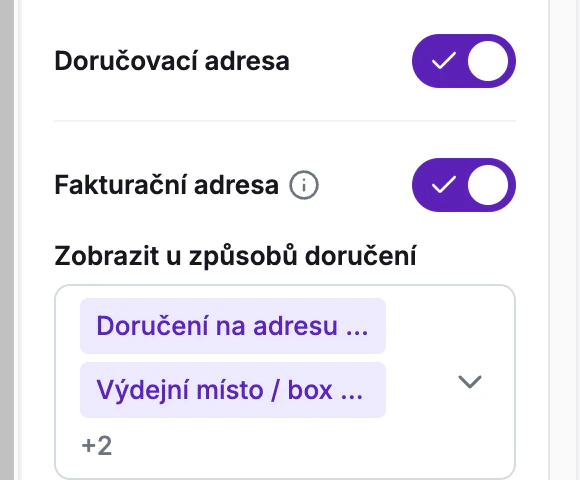
The setting applies to the whole template, that is, to both e-mails. If you have several e-mail templates (for example, for different markets), set up each one separately.
By default, all four delivery methods are selected, so the billing address is shown just as before. At least one method must remain selected. If you don't want to show the billing address at all, turn off the “Billing address” switch – this disables the selection of delivery methods.
How Foxdeli determines the delivery method
Foxdeli assigns each order to one of four delivery methods. The rules are evaluated in this order:
| Option in the editor | When it applies |
|---|---|
| “Own branch (personal pickup)” | The order is going to one of your brick-and-mortar branches (Settings → Pickup places), or the shipment's carrier is “Personal pickup”. |
| “Carrier pickup point / parcel locker” | The customer picks up the shipment at a carrier's pickup point or parcel locker. |
| “Own delivery” | The shipment's carrier is “Own transport”, meaning you deliver it yourself. |
| “Home delivery by carrier” | All other orders – the carrier delivers to the customer's address. This also includes orders whose delivery method cannot be determined. |
The “Order accepted” e-mail is often sent before a shipment is created for the order. Keep this in mind:
- Personal pickup is recognized reliably when the order is assigned to one of your brick-and-mortar branches. If it is not assigned, Foxdeli can recognize it only by the shipment's carrier – and the shipment may not exist yet at that point.
- Own delivery is recognized only by the shipment's carrier. If the shipment doesn't exist yet, the order is treated as “Home delivery by carrier”.
When the billing address is shown
The billing address block appears in the e-mail only when all of the following apply:
- it is the “Order accepted” or “Order changed” e-mail – the billing address is never shown in other e-mails,
- the “Billing address” switch is on in the template,
- the order's delivery method is among the selected ones,
- the order has a billing address.
Preview and test e-mail
Both the editor preview and the test e-mail work with a sample order, so they verify the setting only partially:
- The editor preview shows an order going to a carrier pickup point. You will see the billing address in it only if “Carrier pickup point / parcel locker” is selected and you choose the “Order accepted” or “Order changed” e-mail in the editor's top bar.
- The test e-mail uses a sample order with home delivery, so it follows the “Home delivery by carrier” option.
How the setting works for personal pickup or own delivery can only be verified on a real order.
Still have questions?
Contact usMore articles in this category
- Campaigns – a banner in e-mails and on the Track & Trace page
- Duplicating templates, campaigns and workflows
- E-mails and SMS in the order timeline
- Emoji in the e-mail, Track & Trace and SMS editors
- Fallback SMS when an e-mail doesn't arrive
- Orders in the Seznam Email order overview
- Preview text of delivery e-mails
- Sending e-mails from your own domain (DKIM verification)
- SMS statistics
- SMS to customers
- Withdrawal from contract – button in delivery e-mails
- Recommended products
- UTM parameters in links
- Payment details in the order summary
- Attachments in e-mails
- Auto-filling data in the e-mail subject
- Customer PIN code in the e-mail
- Info banner
Articles in this category
- Campaigns – a banner in e-mails and on the Track & Trace page
- Duplicating templates, campaigns and workflows
- E-mails and SMS in the order timeline
- Emoji in the e-mail, Track & Trace and SMS editors
- Fallback SMS when an e-mail doesn't arrive
- Orders in the Seznam Email order overview
- Preview text of delivery e-mails
- Sending e-mails from your own domain (DKIM verification)
- SMS statistics
- SMS to customers
- Withdrawal from contract – button in delivery e-mails
- Recommended products
- UTM parameters in links
- Payment details in the order summary
- Attachments in e-mails
- Auto-filling data in the e-mail subject
- Customer PIN code in the e-mail
- Info banner