How to turn on e-mail communication: working with Workflow
In Workflow, you set which order and shipment statuses trigger an e-mail or SMS to customers, and when the communication is switched on.
What is a workflow?
In a workflow, you set which order and shipment statuses send the customer an e-mail and, if you like, an SMS. The Track & Trace page always shows the current shipment status, regardless of the workflow.
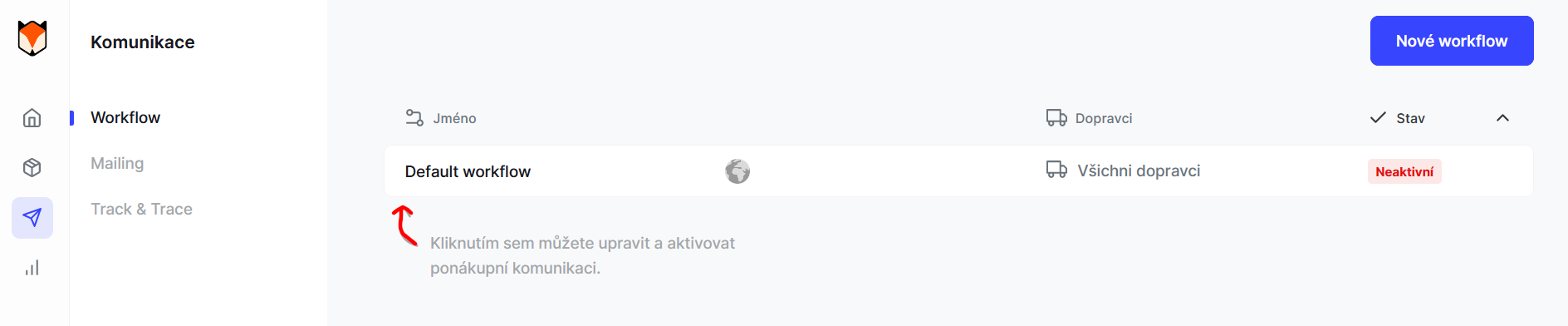
A general workflow is already created by default; you can click into it and look through the individual statuses. You will find it under “Communication” → “Workflow”.
The statuses are on two tabs: “Communication” (the groups “Preparing”, “In transit”, “Delivery” and “Returning”) and “Transaction” (payments and order changes). They are sorted by the phase the shipment is in. Hover over the info icon to see an explanation of a particular status.
For each status, you turn on the “E-mail” switch. With the SMS module turned on, you also choose “SMS”: “No”, “Always” or “Fallback only” – for details, see the articles SMS to customers and Fallback SMS when an e-mail doesn't arrive. The status the carrier uses to report a delay on its side is described in the article Delayed due to carrier time constraints.
Activating a workflow
- First, select the shipment statuses you want to tell customers about by e-mail. Don't forget to save your selection. Saving does not activate the workflow.
- Make sure you have connected your carriers and set up Mailing, the Track & Trace page, Campaigns if you use them, and everything else.
- When everything is ready, activate the workflow with the “Activate” button in the top right of the screen. To activate it, you need a verified e-mail address. Your customers will now receive e-mails telling them that the order has been received, is being packed, has been handed over to the carrier, and so on – depending on your settings.
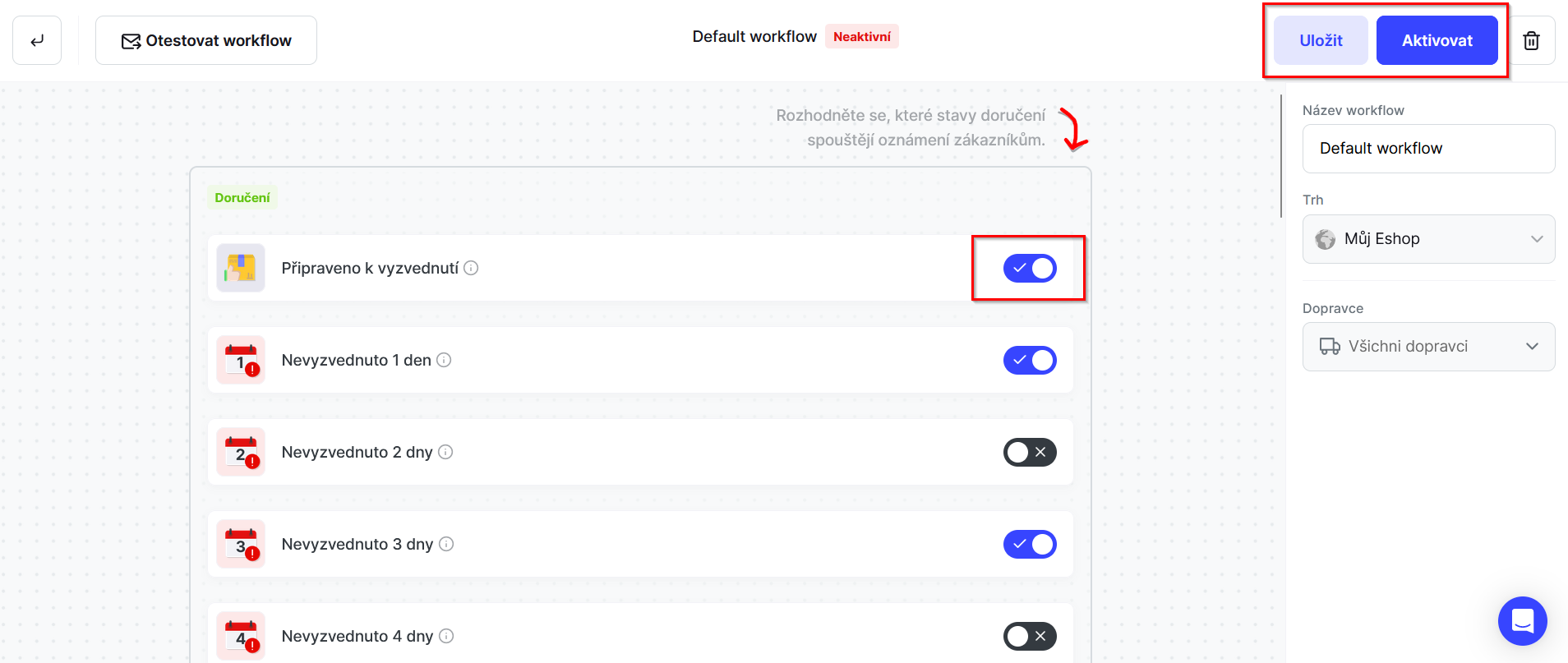
Inactive workflow: While the workflow is inactive, you can take your time setting up its individual statuses and activating Mailing, the Track & Trace pages and Campaigns (banners). No communication is sent to customers through Foxdeli at this point.
Active workflow: Once everything else in your Foxdeli account is ready, you can activate the workflow in which you have defined the statuses you want to use.
Once the workflow is active, e-mail communication (and any SMS you have set up) goes out to your customers.
Can I create more than one workflow?
Yes, you can have several workflows ready and easily activate and deactivate them. If, for example, you want to send more frequent reminders about uncollected parcels at Christmas, you can change the statuses in the workflow for that period or activate a different workflow.
Each workflow applies to one market and one carrier, or to “All carriers”. Only one workflow can be active for each combination of market and carrier; a workflow for a specific carrier takes precedence over a workflow for all carriers. The default workflow (labeled “Default” in the list) sends e-mails and SMS for orders that no other active workflow applies to. If you activate a workflow for the same market and carrier as another active workflow, Foxdeli asks whether to replace the existing one.
The quickest way to prepare a new version of a workflow is to duplicate it – see Duplicating templates, campaigns and workflows.
Still have questions?
Contact usMore articles in this category
- Brick-and-mortar pickup places for personal pickup
- Delayed due to carrier time constraints – a workflow status
- Duplicating templates, campaigns and workflows
- Sending e-mails from your own domain (DKIM verification)
- SMS to customers
- What you'll find on the Dashboard
- UTM parameters in links
- Connecting your e-shop to Foxdeli – Shoptet module
- Connecting your e-shop to Foxdeli – Shopify app
- Getting started with Foxdeli
- Connecting multiple stores to one account
- Payment details in the order summary
- Attachments in e-mails
Articles in this category
- Brick-and-mortar pickup places for personal pickup
- Delayed due to carrier time constraints – a workflow status
- Duplicating templates, campaigns and workflows
- Sending e-mails from your own domain (DKIM verification)
- SMS to customers
- What you'll find on the Dashboard
- UTM parameters in links
- Connecting your e-shop to Foxdeli – Shoptet module
- Connecting your e-shop to Foxdeli – Shopify app
- Getting started with Foxdeli
- Connecting multiple stores to one account
- Payment details in the order summary
- Attachments in e-mails