Emoji in the e-mail, Track & Trace and SMS editors
How to insert emoji into the text of an e-mail, the Track & Trace page or an SMS, how to search for them and what to watch out for.
You can insert emoji into the texts of delivery e-mails, the Track & Trace page and SMS. The emoji picker opens instantly, you can search for emoji in the language of the app, and flags display correctly even on Windows.
Where to insert emoji
- E-mails: Communication → Mailing → template → “Text” tab, the smiley icon in the toolbar of the text field.
- Track & Trace: Communication → Tracking page → template → “Text” tab, the same icon.
- SMS: Communication → SMS → template → the “Insert an emoji” button below the text.
The emoji is inserted at the cursor position.
How to find emoji
- Type in the “Search emoji” field in the language of the app, for example “heart”.
- Emoji are sorted into categories, such as “Smileys & people”, “Food & drink” or “Flags”. The emoji you use most often are in the “Frequently used” category.
- For emoji with people, you can choose the skin tone.
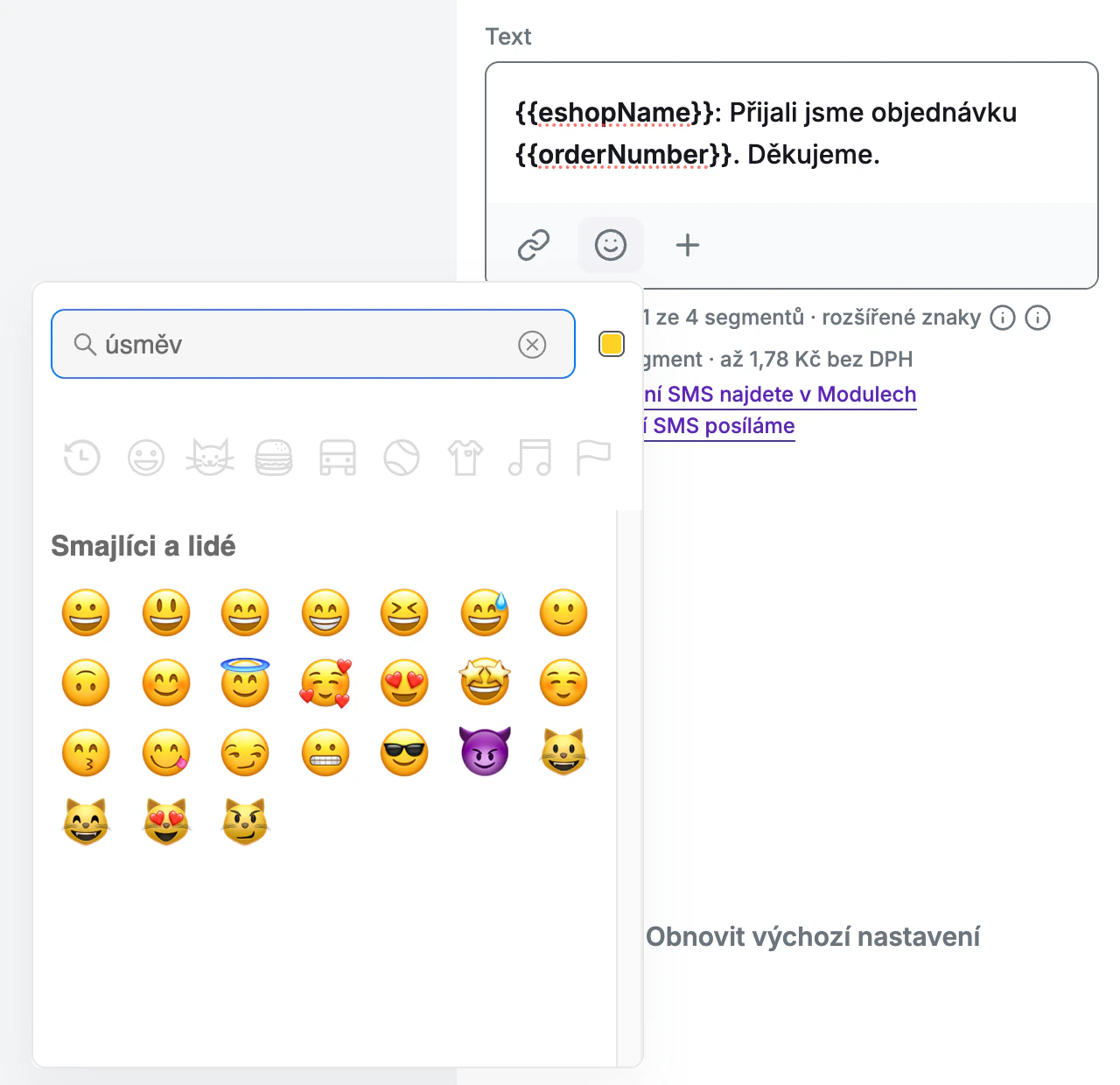
Emoji look the way your device draws them. Your customer may see them slightly differently, depending on their phone or e-mail app. The picker only offers emoji from 2019 and earlier, so that they also display on Windows 10 and older phones.
What to watch out for
- Emoji make an SMS longer. One emoji counts as two characters and switches the whole SMS to extended characters. A segment then holds 70 characters instead of 160, so the SMS may have more segments and cost more. The SMS editor shows the number of segments and the price below the text. Read more in the article SMS to customers.
- Flags on Windows. Windows itself has no flag emoji. We add them in the Foxdeli editors, but a customer on Windows may see two letters instead of a flag in the e-mail or on the Track & Trace page, for example “CZ”.
Still have questions?
Contact usMore articles in this category
- Billing address in e-mails by delivery method
- Campaigns – a banner in e-mails and on the Track & Trace page
- Duplicating templates, campaigns and workflows
- E-mails and SMS in the order timeline
- Fallback SMS when an e-mail doesn't arrive
- Orders in the Seznam Email order overview
- Preview text of delivery e-mails
- Sending e-mails from your own domain (DKIM verification)
- SMS statistics
- SMS to customers
- Withdrawal from contract – button in delivery e-mails
- Recommended products
- UTM parameters in links
- Payment details in the order summary
- Attachments in e-mails
- Auto-filling data in the e-mail subject
- Customer PIN code in the e-mail
- Info banner
Articles in this category
- Billing address in e-mails by delivery method
- Campaigns – a banner in e-mails and on the Track & Trace page
- Duplicating templates, campaigns and workflows
- E-mails and SMS in the order timeline
- Fallback SMS when an e-mail doesn't arrive
- Orders in the Seznam Email order overview
- Preview text of delivery e-mails
- Sending e-mails from your own domain (DKIM verification)
- SMS statistics
- SMS to customers
- Withdrawal from contract – button in delivery e-mails
- Recommended products
- UTM parameters in links
- Payment details in the order summary
- Attachments in e-mails
- Auto-filling data in the e-mail subject
- Customer PIN code in the e-mail
- Info banner