E-mails and SMS in the order timeline
The order timeline shows whether an e-mail or SMS reached the customer and, if not, why. You can open a sent message exactly as the customer received it.
Every e-mail and SMS that Foxdeli sends to a customer about an order has its own line in the timeline in the order detail. You can see when the message was sent, whether the customer received it and, if not, why. You can also open the sent message exactly as it went out to the customer. When a customer tells you they never received anything, you'll find the answer in one place.
Where to find the timeline
- In the menu, open “Orders”.
- Click an order. Its detail opens.
- Each shipment has a “Timeline” block. E-mails and SMS appear in it when “Communication” is checked.
The checkboxes above the timeline control what it shows:
- “Tracking” – shipment statuses from the carrier.
- “Communication” – sent e-mails and SMS.
- “Notes” – notes on the shipment.
- “Exceptions” – messages Foxdeli deliberately did not send (see below).
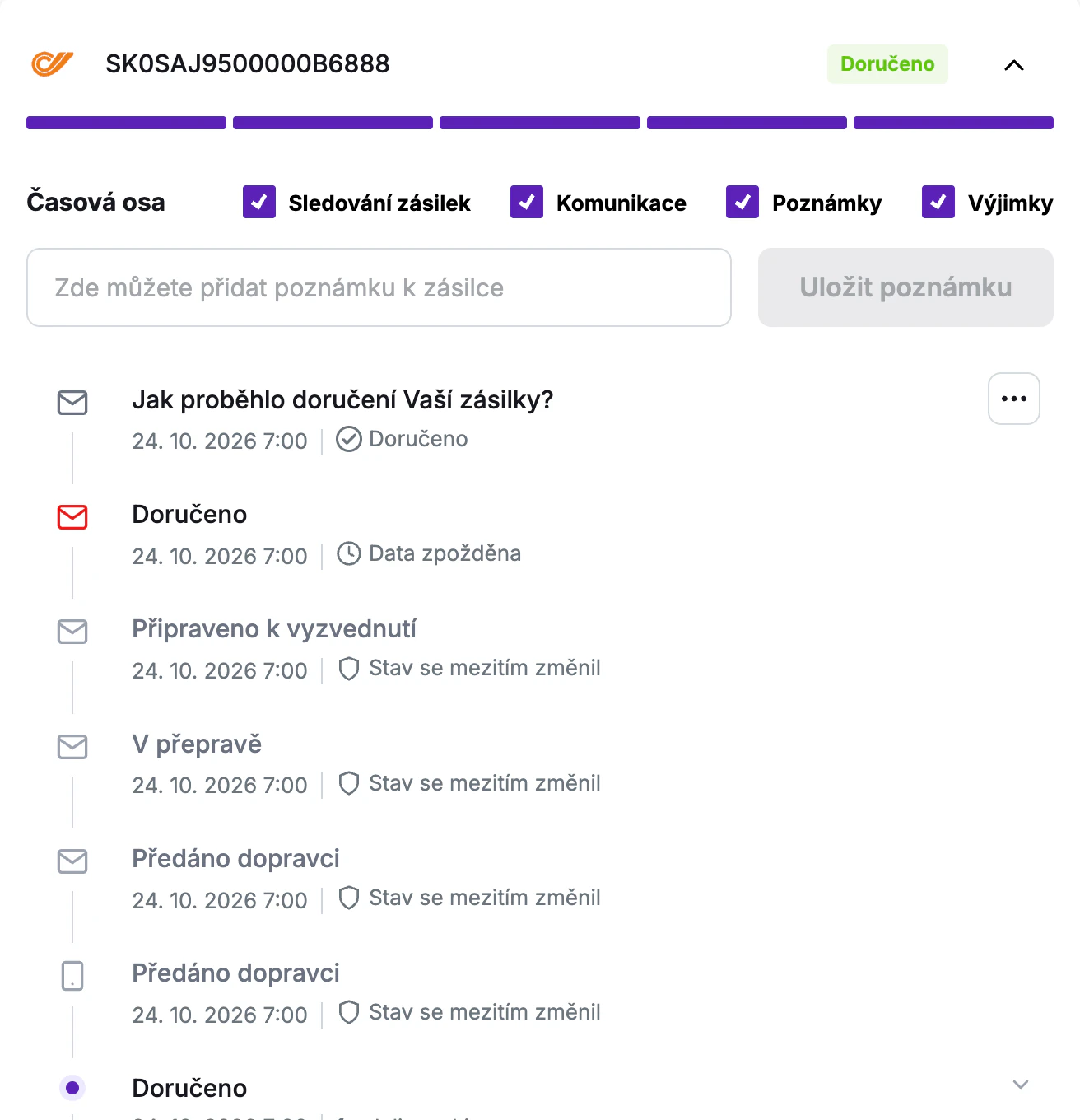
An order that has no shipment yet has a separate “Timeline” block with the messages for the order.
What you see for each message
Each message has one line in the timeline: a name based on the order status it was sent for, the time it was sent and the current status of the message. An SMS sent in place of an undelivered e-mail is labeled “Fallback SMS”, and the undelivered e-mail shows “A fallback SMS was sent instead of the e-mail.”
Hover over the message status to see the details:
- Message history – what happened to the message and when, newest event first.
- Explanation – what the current status means, or why the message didn't arrive.
- Recipient server response – for an e-mail, the original wording returned by the customer's server, shown as “Reason given by the provider: …”.
- Support code – for errors on the side of Foxdeli or the provider, see below.
E-mail statuses
- “Sent” – the e-mail has been sent.
- “Delivered” – the customer's server accepted the e-mail.
- “Opened” – the customer opened the e-mail or clicked a link in it.
- “Deferred” – delivery hasn't succeeded yet; we keep trying.
- “Undelivered” – the e-mail didn't reach the customer. You'll find the reason in the details.
SMS statuses
- “SMS delayed” – the SMS is waiting to be sent, for example for the phone number to be corrected.
- “SMS sent” – the operator has accepted the SMS and is delivering it.
- “SMS held by the operator” – the customer's phone is switched off or has no signal; the operator keeps trying to deliver it.
- “SMS delivered” – the SMS reached the customer's phone.
- “SMS not delivered” – the operator did not deliver the SMS. We don't send it again.
- “SMS not sent” – the SMS was not sent and we won't send it again. You'll find the reason in the details.
Why a message didn't arrive
When a message doesn't arrive, the status details explain the reason in plain words. For SMS, the text also tells you what you can do about it.
- “The address does not exist.”
- “The mailbox is full or disabled.”
- “The recipient's server does not accept this address.”
- “The recipient's server refused the e-mail (a block or a spam filter).”
- “There is a temporary problem on the recipient's side. We are trying to deliver the e-mail again.”
- “We did not send the e-mail. The address did not work before.” or “… The address is not valid.”
- “We did not send the e-mail. The recipient unsubscribed from e-mails.” or “… The recipient marked an earlier e-mail as spam.”
Below the explanation, in smaller type, is the response from the customer's server (“Reason given by the provider: …”). It comes in handy when you need the exact wording, for example for the customer's IT department.
SMS
- Phone number – the number is missing, invalid, not a mobile number, or has no country code. Check it and correct it in the order in your e-shop. If only the country code is missing and the country can't be reliably determined, the SMS waits up to 6 hours for the number to be corrected.
- Country of the number – we don't send SMS to this number's country yet, and you pay nothing for it.
- Operator – the operator rejected the number as invalid, or the SMS provider blocked the number.
- SMS template and text – the order's market has no active SMS template, the SMS text for the status is missing, the SMS is too long once the order details are filled in, or a variable could not be filled in. The text tells you what to adjust in Communication or in the workflow.
- Module and subscription – the SMS module is off, the subscription is cancelled or unpaid, or you've used up your free SMS during the trial.
“Code for Foxdeli support”
Some errors originate on the side of Foxdeli or the provider, and you don't need to do anything about them. For such a message you'll see only a general explanation, for example “The SMS was not sent. We will not send it again.” or “The e-mail was not sent.”, with the line “Code for Foxdeli support: …” below it. If you want to know more, send this code to our support team.
Messages deliberately not sent
With the “Exceptions” checkbox checked, you'll also see messages that Foxdeli intentionally didn't send:
- “Inactive configuration” – the e-mail wasn't sent because sending it for this status was switched off in the workflow.
- “Status changed in the meantime” – the shipment moved to another status in the meantime, for example it had already been delivered, so the message would no longer be relevant. This is not an error.
- “Data delayed” – the data was no longer up to date, so the message wasn't sent.
Preview of a sent message
- Find the e-mail or SMS in the timeline.
- Click the three dots to the right of the message name.
- Choose “View sent message”.

The “Sent e-mail” or “Sent SMS” window opens. For an e-mail you'll see the “Subject”, the “Recipient”, the time in the “Sent” row and the whole e-mail exactly as the customer received it. For an SMS you'll see the recipient, the time it was sent, the number of segments and characters, and the SMS text in a phone preview.
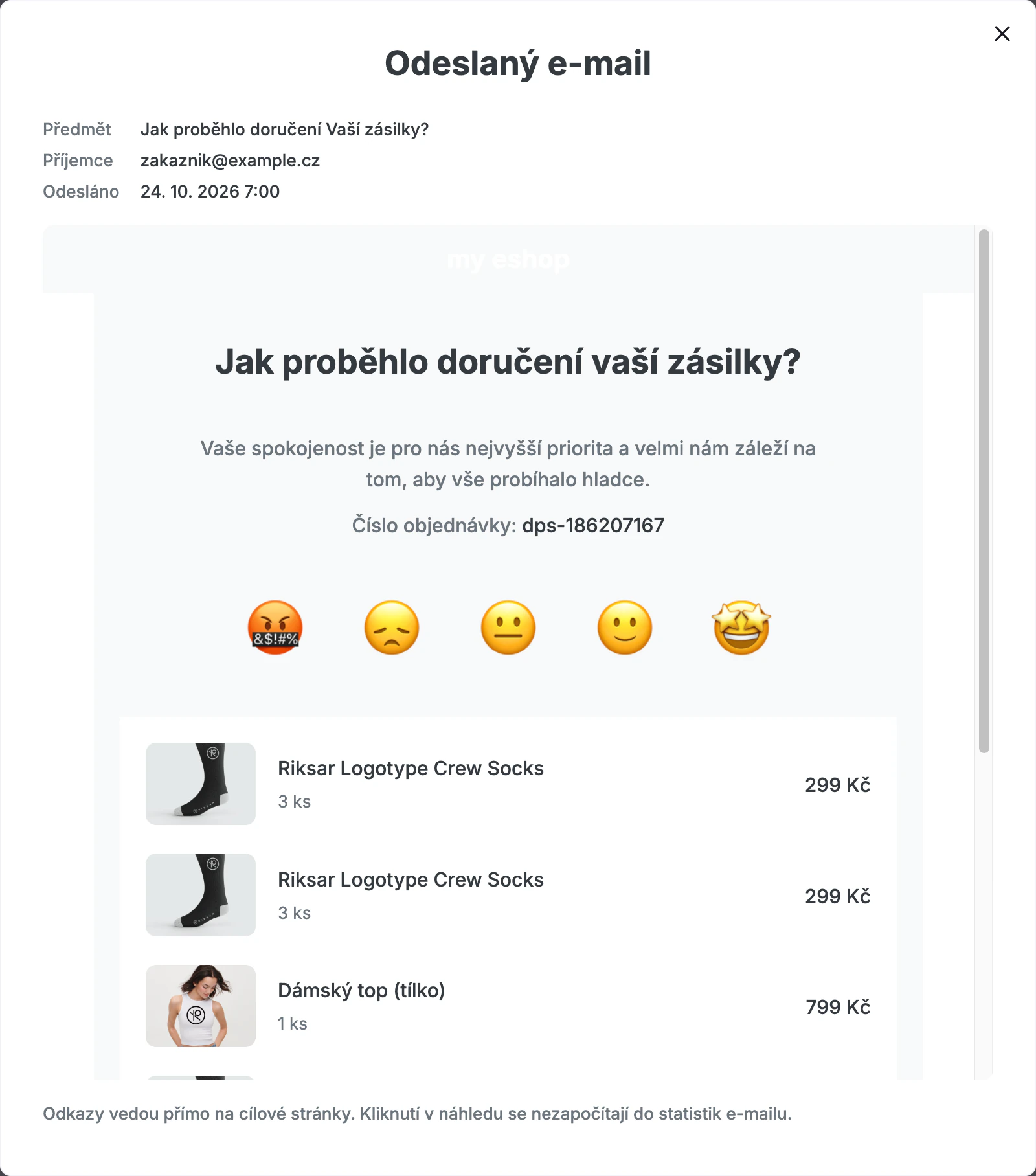
Links in the e-mail preview lead straight to the target pages. Opening the preview or clicking in it does not count toward the e-mail statistics.
How long the preview is available
The preview is available only for a limited time after the message was sent, depending on your plan:
- Basic – 7 days
- Pro – 14 days
- Premium and Enterprise – 30 days
After that, the three dots next to the message disappear. The message status and the reason it wasn't delivered stay in the timeline.
We store the preview only for messages sent since this feature was launched. For older messages you'll see the notice “We have not stored the content of this message. We keep only messages sent since this feature was launched.”
Frequently asked questions
- Why are there no three dots next to a message? The message is older than the number of days your plan covers, or it was never sent at all. For example, an SMS that wasn't sent because of a missing number or template has no content.
- A customer says they didn't get an e-mail. Where do I start? Check the e-mail status. If it's “Delivered” or “Opened”, the customer's server accepted the e-mail. Ask the customer to check their spam and other folders too. If it's “Undelivered”, hover over the status to see the reason. You'll also find orders with undelivered messages in Issues.
Still have questions?
Contact usMore articles in this category
- Billing address in e-mails by delivery method
- Brick-and-mortar pickup places for personal pickup
- Campaigns – a banner in e-mails and on the Track & Trace page
- Delayed due to carrier time constraints – a workflow status
- Duplicating templates, campaigns and workflows
- Emoji in the e-mail, Track & Trace and SMS editors
- Fallback SMS when an e-mail doesn't arrive
- Order Issues
- Orders in the Seznam Email order overview
- Preview text of delivery e-mails
- Sending e-mails from your own domain (DKIM verification)
- SMS statistics
- SMS to customers
- Undelivered message alerts
- What you'll find on the Dashboard
- Withdrawal from contract – button in delivery e-mails
- Recommended products
- UTM parameters in links
- Payment details in the order summary
- Attachments in e-mails
- Auto-filling data in the e-mail subject
- Customer PIN code in the e-mail
- Info banner
Articles in this category
- Billing address in e-mails by delivery method
- Brick-and-mortar pickup places for personal pickup
- Campaigns – a banner in e-mails and on the Track & Trace page
- Delayed due to carrier time constraints – a workflow status
- Duplicating templates, campaigns and workflows
- Emoji in the e-mail, Track & Trace and SMS editors
- Fallback SMS when an e-mail doesn't arrive
- Order Issues
- Orders in the Seznam Email order overview
- Preview text of delivery e-mails
- Sending e-mails from your own domain (DKIM verification)
- SMS statistics
- SMS to customers
- Undelivered message alerts
- What you'll find on the Dashboard
- Withdrawal from contract – button in delivery e-mails
- Recommended products
- UTM parameters in links
- Payment details in the order summary
- Attachments in e-mails
- Auto-filling data in the e-mail subject
- Customer PIN code in the e-mail
- Info banner