Duplicating templates, campaigns and workflows
How to create a copy of an e-mail or SMS template, a Track & Trace page, a campaign or a workflow – for another market, for example – and how to activate it so that the change reaches your customers only when you want it to.
You don't have to build a new template from scratch. Create a copy of one you already have and change only what you need – texts for another market, a new version of a workflow, or this year's Christmas campaign based on last year's. A copy is always inactive, so you can work on it at your own pace. Your customers are affected only once you activate it.
Where to find it
You can duplicate items in all lists in the “Communication” section:
- “Workflow”
- “Mailing” (e-mail templates)
- “Tracking page” (Track & Trace pages for tracking shipments)
- “SMS” (SMS templates, only with the SMS module switched on)
- “Campaigns”
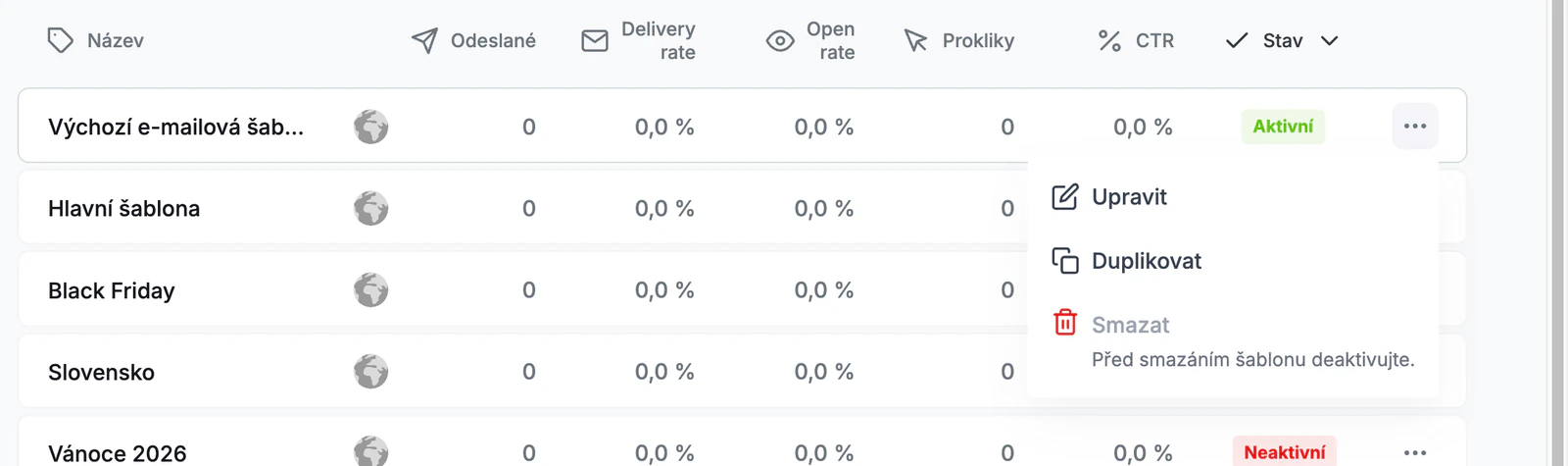
In the last column of the list, every item has a ⋯ menu with the options “Edit”, “Duplicate” and “Delete”. For campaigns, it also offers “Schedule campaign…”. The editor of every item has the same ⋯ menu with “Duplicate” and “Delete” in the top right corner, next to the “Save” and “Activate” buttons.
How to create a copy
- Open a list, for example “Communication” → “Mailing”.
- Next to the item you want to copy, click ⋯ and choose “Duplicate”.
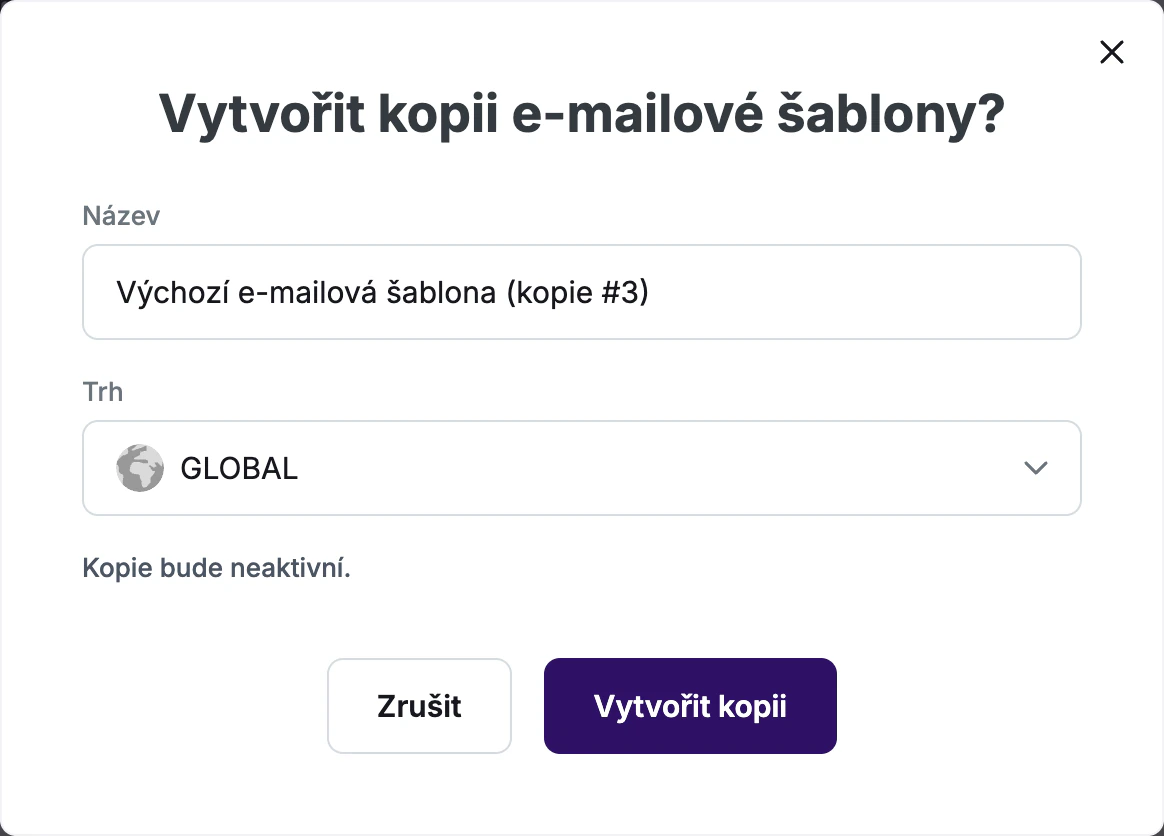
- In the dialog, check the “Name”. It is pre-filled with the name of the original and the suffix “(copy)”, for example “Default (copy)”. Further copies get a number: “(copy #2)”, “(copy #3)”…
- Select the “Market” the copy is for. The market of the original is preselected.
- For a workflow, also select the “Carrier” (a specific carrier or “All carriers”).
- Click “Create copy”.
You stay in the list and see the message “We created the copy …” with the link “Open the copy”. The copy appears in the list with the status “Inactive”.
The name is required. If you manually enter a name that another item of the same type already has, you will see the message “An item with this name already exists.”
What gets copied
The copy takes over the last saved version of the original – except for the name and the market (and, for a workflow, the carrier), which you choose in the dialog:
- E-mail template and Track & Trace page – texts in all languages, design, module settings and images.
- SMS template – texts for all states in all languages.
- Campaign – banner images, target URLs, the “Show banner” switches and the display period.
- Workflow – the e-mail and SMS settings for all states, including the “Fallback only” option.
If you duplicate from the editor, unsaved changes are not carried over to the copy. The dialog points this out: “We copy the last saved version. Unsaved changes are not carried over to the copy.” In the SMS template editor, “Duplicate” is blocked until you save your changes.
You can create a copy for any market of the store you are currently working in. The market of a saved item (and, for a workflow, its carrier) cannot be changed in the editor – duplicating is the quickest way to get it to another market. If you copy a template for a market with a different language, check the texts in that market's language after opening the copy.
How to activate a copy
Open the copy (via the “Open the copy” link or by clicking it in the list), edit it, save it and click “Activate”. What happens on activation depends on the type of item:
- E-mail template, Track & Trace page and SMS template: only one can be active per market at a time. When you activate the copy, the template (page) that was active for the same market until then is deactivated.
- Campaign: a permanent campaign (without a period) behaves the same way – only one can be active per market. A campaign with a display period deactivates nothing; it only replaces the permanent campaign during the set period. If the copy took over a period that has already ended (last year's Black Friday, for example), the “Activate” button is blocked with the hint “The period has already ended. Change it first.” Learn more in the Campaigns article.
- Workflow: only one workflow can be active for each combination of market and carrier. If the copy has the same market and carrier as an active workflow, the duplicate dialog already warns you. On activation, the “Another workflow is already active” dialog then opens, and the “Replace active workflow” button deactivates the existing workflow and activates the copy.
A new version of the default workflow
The default workflow (marked with the “Default” label in the list) sends e-mails and SMS for orders that no other active workflow covers by market and carrier. To prepare a new version of it:
- Duplicate the default workflow. Keep the same market and carrier (the default market and “All carriers”).
- Edit the copy and save it.
- Click “Activate” and in the “Another workflow is already active” dialog choose “Replace active workflow”. The original default workflow is deactivated.
- Foxdeli asks “Make this workflow the default?” Choose “Make default”. If you choose “Activate only”, orders that no other workflow covers will not receive any e-mails or SMS.
- You can now delete the original workflow.
Deleting
The “Delete” option in the ⋯ menu permanently deletes the item once you confirm it in the dialog. Deletion cannot be undone.
- You cannot delete an active template, page, campaign or workflow – deactivate it first.
- You cannot delete the default workflow. First make another workflow for the default market and all carriers the default.
Frequently asked questions
- How do I quickly prepare communication for a new market? Duplicate the e-mail template, the Track & Trace page and, if needed, the SMS template and the campaign, and select the new market in the dialog. Check the copies and activate them.
- Will customers see a copy I'm still working on? No. The copy stays inactive until you activate it yourself.
- Are statistics copied too? No. The copy is a new item and starts without statistics. Views and clicks start counting once you use it.
- Why can't I delete an item? It is active, or it is the default workflow. The “Delete” option in the ⋯ menu tells you the reason.
Still have questions?
Contact usMore articles in this category
- Billing address in e-mails by delivery method
- Brick-and-mortar pickup places for personal pickup
- Campaigns – a banner in e-mails and on the Track & Trace page
- Delayed due to carrier time constraints – a workflow status
- E-mails and SMS in the order timeline
- Emoji in the e-mail, Track & Trace and SMS editors
- Fallback SMS when an e-mail doesn't arrive
- How to turn on e-mail communication: working with Workflow
- Orders in the Seznam Email order overview
- Preview text of delivery e-mails
- Sending e-mails from your own domain (DKIM verification)
- SMS statistics
- SMS to customers
- Withdrawal from contract – button in delivery e-mails
- Recommended products
- UTM parameters in links
- Connecting your e-shop to Foxdeli – Shopify app
- Getting started with Foxdeli
- Connecting multiple stores to one account
- Payment details in the order summary
- Attachments in e-mails
- Auto-filling data in the e-mail subject
- Customer PIN code in the e-mail
- Info banner
Articles in this category
- Billing address in e-mails by delivery method
- Brick-and-mortar pickup places for personal pickup
- Campaigns – a banner in e-mails and on the Track & Trace page
- Delayed due to carrier time constraints – a workflow status
- E-mails and SMS in the order timeline
- Emoji in the e-mail, Track & Trace and SMS editors
- Fallback SMS when an e-mail doesn't arrive
- How to turn on e-mail communication: working with Workflow
- Orders in the Seznam Email order overview
- Preview text of delivery e-mails
- Sending e-mails from your own domain (DKIM verification)
- SMS statistics
- SMS to customers
- Withdrawal from contract – button in delivery e-mails
- Recommended products
- UTM parameters in links
- Connecting your e-shop to Foxdeli – Shopify app
- Getting started with Foxdeli
- Connecting multiple stores to one account
- Payment details in the order summary
- Attachments in e-mails
- Auto-filling data in the e-mail subject
- Customer PIN code in the e-mail
- Info banner