SMS statistics
How many SMS were sent and delivered, how many customers clicked the tracking link and why some SMS were not sent – an overview in Analytics → SMS.
In Analytics, on the SMS tab, you can see how many SMS you sent to customers, how many were delivered and how many customers clicked the shipment tracking link. You'll also find a breakdown by order status and the reasons why some SMS weren't sent. This shows you which SMS customers read and where something needs fixing, such as phone numbers in the checkout.
Where to find the statistics
- In the main menu, open “Analytics” and select the “SMS” tab (direct link).
- At the top, select the market (or “All markets”) and the period: “Today”, “Last 30 days”, “Last 60 days”, “Last 90 days”, “Last month”, “Current month”, or a custom range in the calendar.
The statistics are counted from the launch of the SMS module; earlier periods are empty. The numbers are compared with the previous period of the same length. The selected market and period stay set when you switch to another Analytics tab.
The “Overview” tab also has an SMS card with the number of sent SMS, the delivery rate and the click rate. It appears when you have the SMS module switched on or when SMS were sent in the period.
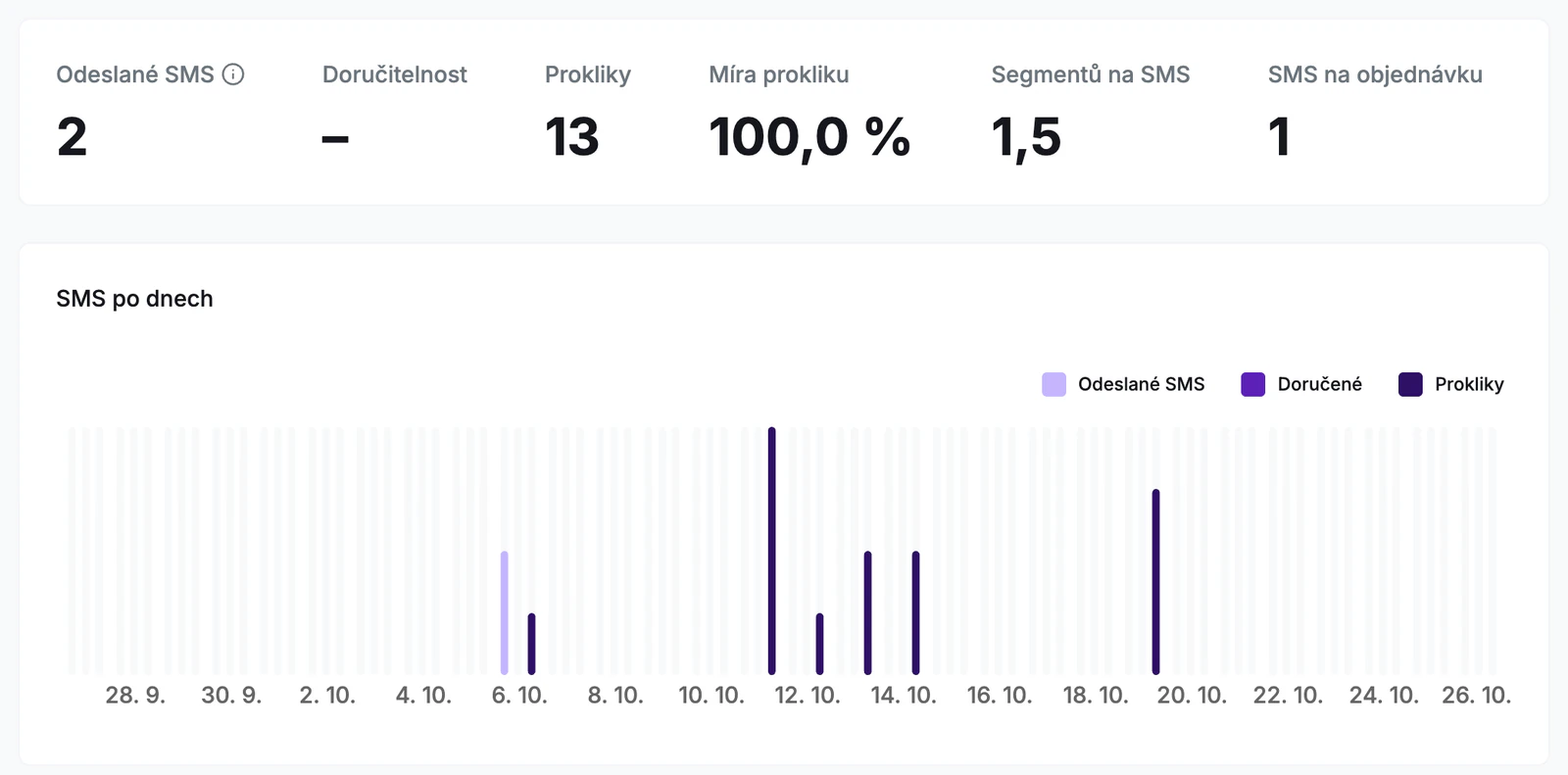
Key metrics
| Metric | What it means |
|---|---|
| Sent SMS | The number of SMS sent in the period. Each SMS is counted once, regardless of how many segments it has. Test orders are not included. |
| Delivery rate | The share of sent SMS whose delivery the operator confirmed. In the detail you'll see the counts “Delivered”, “Undelivered” and “No delivery confirmation”. |
| Clicks | How many times customers clicked the tracking link in an SMS – unique (each SMS once) and in total. |
| Click rate | The share of sent SMS in which the customer clicked the link at least once. |
| Segments per SMS | The average number of segments per SMS. The detail shows the total number of segments and the number of SMS with 1 segment. |
| SMS per order | How many SMS an order received on average. The detail shows the number of orders with SMS. |
Clicks are measured only for the tracking link that you add to the SMS with a variable or the “Insert tracking link” button. We shorten this link in the SMS so it takes up fewer characters.
Charts and tables
SMS by day
The bar chart shows sent and delivered SMS and clicks on individual days. For a longer period (over 92 days) the chart switches to weeks, and for a period longer than about a year to months. Click an item in the legend to hide that series.
By order status
The table breaks SMS down by the workflow state in which they were sent. For each state you see the sent SMS and their share of the total, the delivery rate, clicks, the click rate and the average number of segments. It's useful, for example, for comparing whether customers click more for the “Handed to carrier” state or for “Delivery today”.
Unsent SMS
Shows how many SMS were due to be sent in the period but weren't, and what share of all SMS that is. Below it is a breakdown by reason:
- Missing or invalid number – the order has no phone number, the number is invalid or not a mobile number, its country couldn't be determined, or we don't send SMS to the number's country yet. Check whether customers enter their phone number in your e-shop's checkout.
- Limit used up – for example, the free SMS in the trial have run out. You'll find the limit and its state in Modules → SMS.
- SMS module off – a state in your workflow has an SMS, but the module was switched off or unavailable.
- Rejected by the operator – the operator rejected the SMS, or it couldn't be sent in time.
- Other reason – all other cases, for example when the market has no active SMS template.
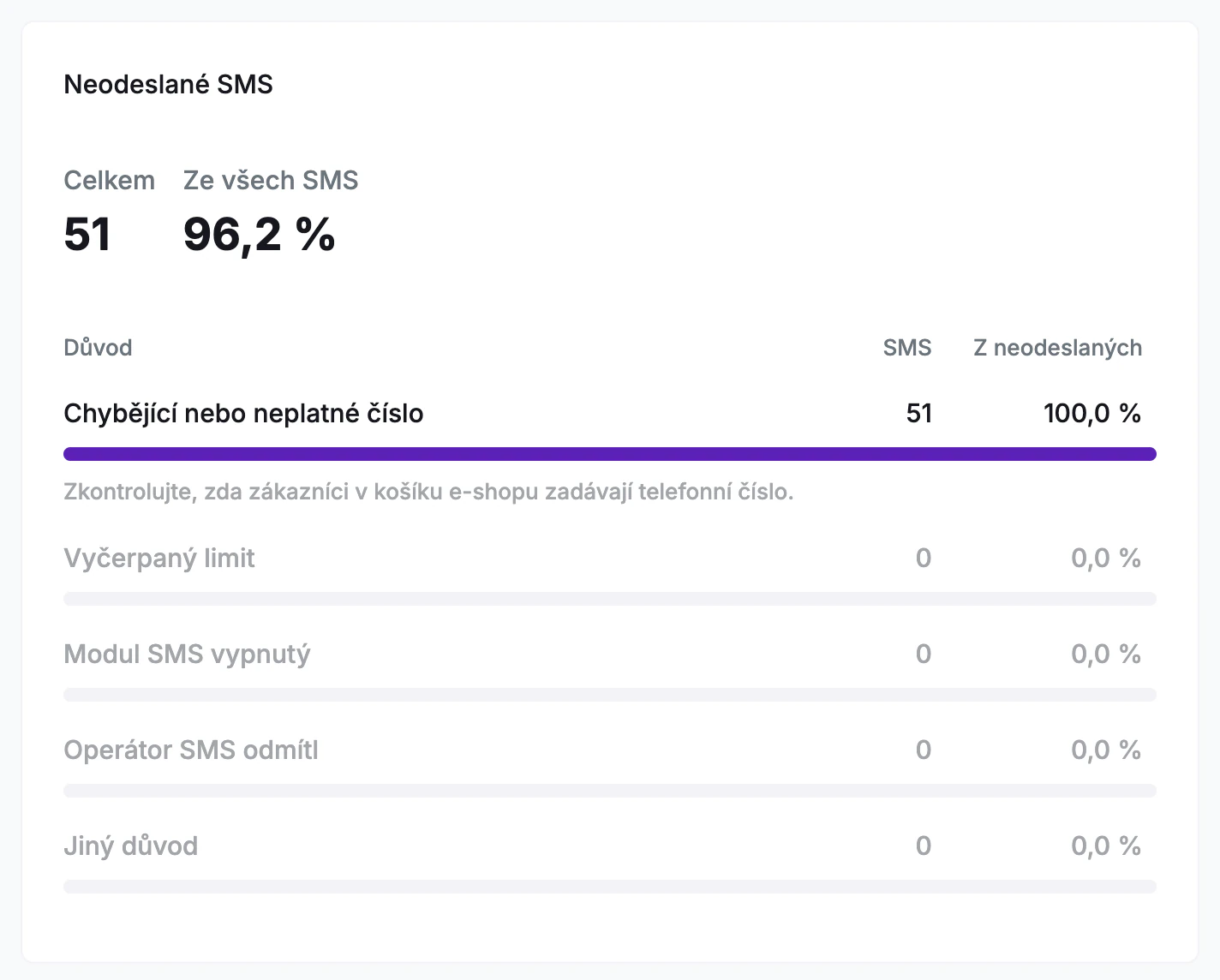
You'll find the reason for a specific order in its timeline.
SMS delivery
The chart shows the ratio of delivered SMS, undelivered SMS and SMS without a delivery confirmation. An undelivered SMS means the operator didn't deliver it to the customer, for example because their phone was switched off for a long time. We don't send such an SMS again.
Things to keep in mind
- The statistics are not your bill. The statistics count SMS, while in Billing you pay for segments. That's why the numbers differ. You'll find segments in Billing → Subscription and in Modules → SMS.
- Deliveries and clicks are counted on the day they come in. So at the start of a period, you may see a delivery or click for an SMS sent in the previous period.
- A click belongs to the order's last SMS. When an order received several SMS, the click is counted toward the one sent last.
If no SMS were sent in the period, the page tells you so. If you don't have the SMS module switched on, you'll find a link to Modules here, where you can switch it on.
Still have questions?
Contact usMore articles in this category
- Billing address in e-mails by delivery method
- Campaigns – a banner in e-mails and on the Track & Trace page
- Duplicating templates, campaigns and workflows
- E-mails and SMS in the order timeline
- Emoji in the e-mail, Track & Trace and SMS editors
- Fallback SMS when an e-mail doesn't arrive
- Orders in the Seznam Email order overview
- Preview text of delivery e-mails
- Sending e-mails from your own domain (DKIM verification)
- SMS to customers
- Withdrawal from contract – button in delivery e-mails
- Recommended products
- UTM parameters in links
- Payment details in the order summary
- Attachments in e-mails
- Auto-filling data in the e-mail subject
- Customer PIN code in the e-mail
- Info banner
Articles in this category
- Billing address in e-mails by delivery method
- Campaigns – a banner in e-mails and on the Track & Trace page
- Duplicating templates, campaigns and workflows
- E-mails and SMS in the order timeline
- Emoji in the e-mail, Track & Trace and SMS editors
- Fallback SMS when an e-mail doesn't arrive
- Orders in the Seznam Email order overview
- Preview text of delivery e-mails
- Sending e-mails from your own domain (DKIM verification)
- SMS to customers
- Withdrawal from contract – button in delivery e-mails
- Recommended products
- UTM parameters in links
- Payment details in the order summary
- Attachments in e-mails
- Auto-filling data in the e-mail subject
- Customer PIN code in the e-mail
- Info banner