Undelivered message alerts
When an e-mail or SMS doesn't reach your customer, or an order has an incorrect contact, you'll find the order in Order Issues. The alert tells you what happened and what you can do.
When an e-mail or SMS can't be delivered to the customer, the order gets an alert and appears in Order Issues. An order also gets an alert when its e-mail or phone number is missing or has an invalid format. This way you know right away which customers didn't receive information about their order, and you can reach them another way before they start complaining.
When an alert is created
- The message didn't arrive – the e-mail bounced, the customer's server rejected it, or the operator didn't deliver the SMS.
- The message wasn't sent – because of a technical error or because messages can't be sent to the given contact.
- The contact is missing or incorrect – the order's e-mail or phone number is missing or has an invalid format, or the number isn't a mobile number. We check the contact on every new order and whenever the contact or address changes.
- The customer doesn't want messages – they unsubscribed from e-mails or marked an e-mail as spam.
Every e-shop sees e-mail alerts. You'll see alerts about SMS and phone numbers only if the SMS module is switched on.
An alert only brings orders that haven't been completed yet into Order Issues – that is, orders in the status “Created”, “Being packed”, “In transit” or “Partially delivered”.
No alert is created when an e-mail is just waiting for another delivery attempt. Nor is one created because of your account settings, for example when a market has no active SMS template or the SMS module is switched off. You'll only see such reasons in the order timeline.
Where you'll see alerts
- In the menu – a red dot appears on the “Issues” icon when you have an order with issues.
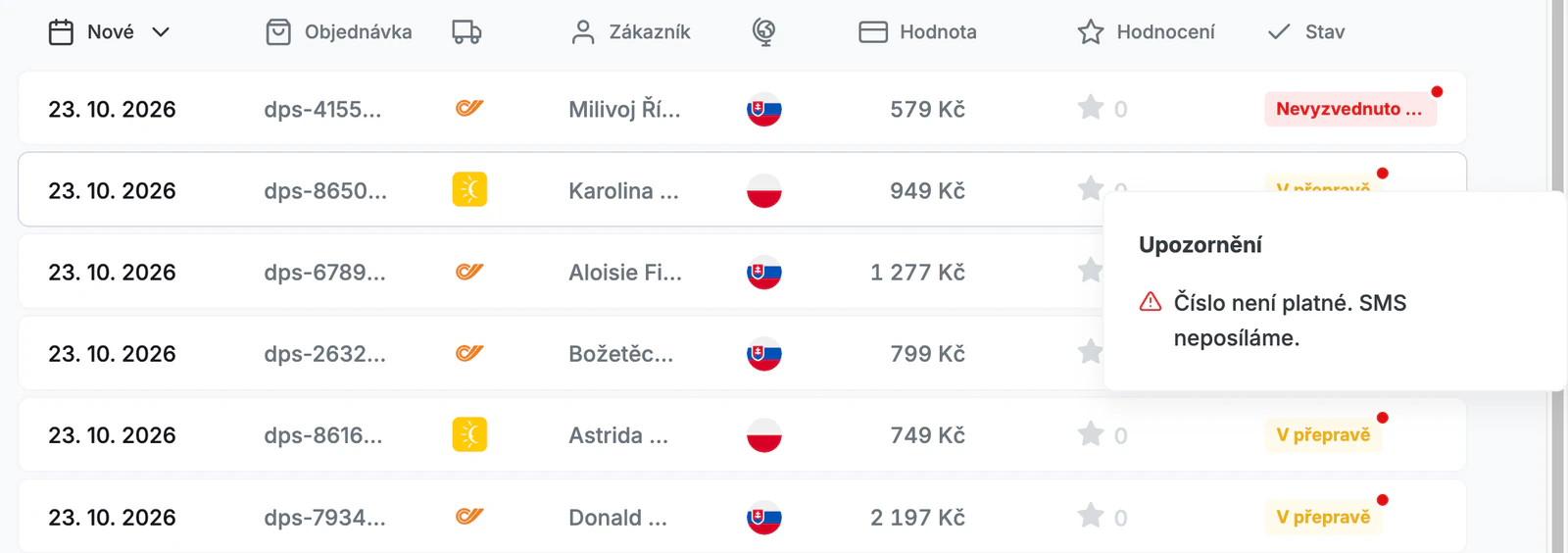
- In the list – on the “Issues” tab, the order has a red dot in the “Status” column. Hover over it to see the “Alerts” window with a short description of each problem.
- On the Dashboard – in the “Latest issues” block.
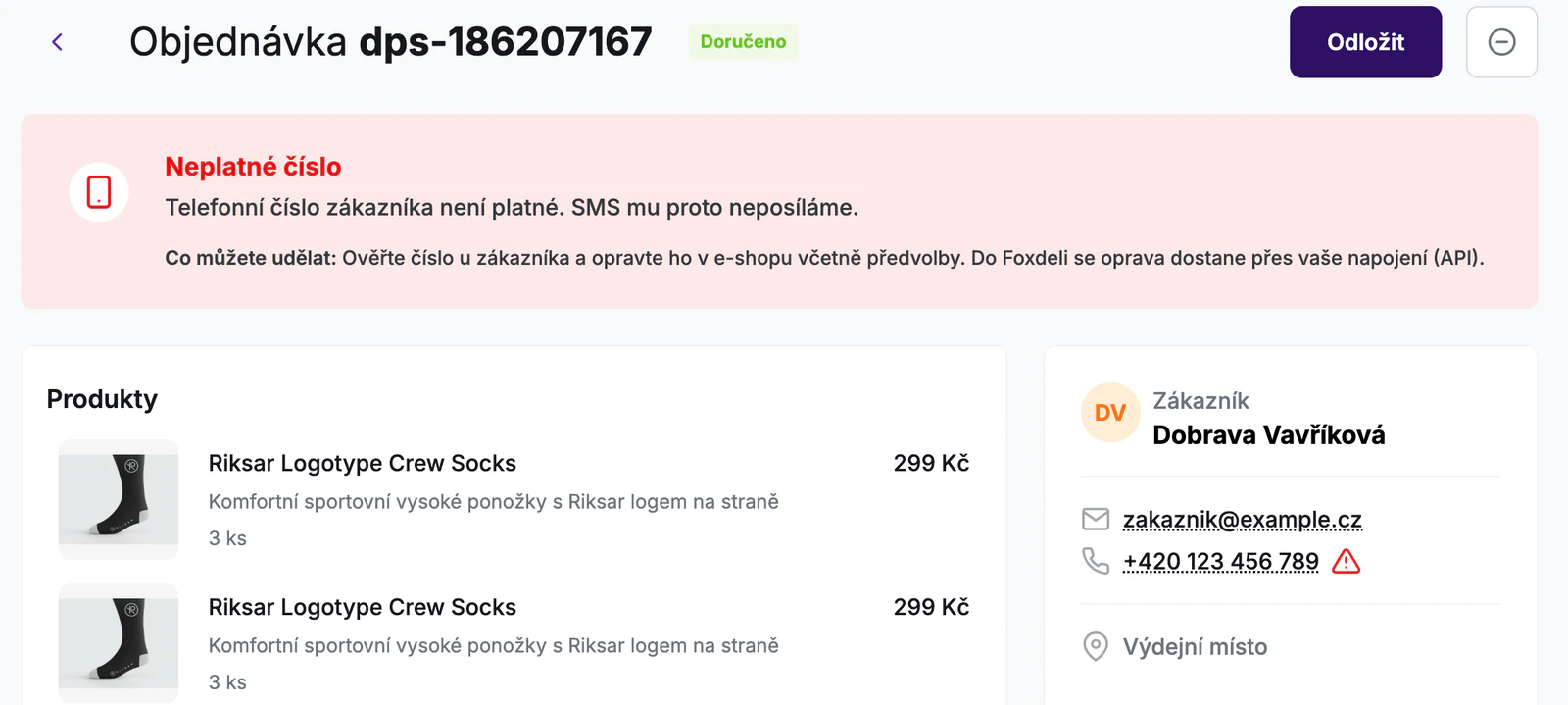
- In the order detail – at the top there's a separate box for each alert: what happened, “What you can do:” and buttons. The e-mail or phone number on the customer card also shows a warning icon. Click it to jump to the alert.
Red and orange alerts
- A red alert means that messages sent through this channel won't reach the customer until you correct the contact. It can't be confirmed. It disappears once you correct the contact.
- An orange alert means something went wrong or may be wrong. If everything is fine, confirm it with the “It's fine” button.
Overview of alerts
- “E-mail does not exist” (red) – the customer's server permanently rejected the e-mail. The address most likely doesn't exist. Check the address with the customer and correct it in your e-shop.
- “Invalid e-mail” (red) – the address has an invalid format, so we don't send e-mails to the customer. Correct it in your e-shop.
- “E-mail missing” (red) – the customer's e-mail is missing from the order. Add it in your e-shop.
- “E-mail not delivered” (orange) – the e-mail couldn't be delivered even after repeated attempts. The mailbox may have been full.
- “E-mail blocked” (orange) – the customer's server rejected the e-mail, usually because of spam protection.
- “E-mail not sent” (orange) – a technical error that isn't on your side. We keep sending further e-mails as usual.
- “Unsubscribed from e-mails” (orange) – the customer unsubscribed from e-mails. We don't send them any more e-mails.
- “Customer reported spam” (orange) – the customer marked an e-mail as spam. We don't send them any more e-mails.
SMS and phone number
- “Phone number missing” (red) – add the customer's number in your e-shop, including the country code, for example +420.
- “Unrecognized number” (red) – no phone number can be determined from the details provided. Correct it in your e-shop, including the country code.
- “Invalid number” (red) – the number isn't valid. Check it with the customer and correct it.
- “Not a mobile number” (red) – it may be a landline. If the customer has a mobile number, add it.
- “Unclear country code” (red) – the number has no country code and the country can't be reliably determined. The alert shows “Possible numbers:” and how long the SMS will wait for the number to be corrected. After the correction, the SMS is sent within a few minutes. If you don't correct the number within 6 hours, the SMS won't be sent.
- “Number rejected” (red) – the SMS provider rejected the number as invalid. Check it with the customer and correct it.
- “SMS not delivered” (orange) – the operator didn't deliver the SMS. The phone may have been switched off or the number inactive.
- “SMS not sent” (orange) – a technical error that isn't on your side. We keep sending further SMS as usual.
- “Country without SMS support” (orange) – we don't send SMS to this number's country, and you don't pay anything for it. If the number is correct, confirm the alert. Otherwise, correct the country code.
- “SMS to the number blocked” (orange) – the SMS provider blocked the number, for example after the customer unsubscribed from SMS. The block can't be lifted in Foxdeli.
How to resolve an alert
- Open the order and look at the alert. If it relates to a specific message, the “Show in the timeline” button takes you to it. Hover over its status to see the exact reason.
- If the contact is incorrect, check it with the customer and correct it on the order in your e-shop. The contact can't be corrected in Foxdeli.
- If everything is fine, click “It's fine” on the orange alert.
- If you need more time, snooze the order with the “Snooze” button in the order detail. Read more in the article Order Issues.
How the correction gets into Foxdeli
- Shoptet, Upgates and WooCommerce – make the correction in your e-shop; it's transferred to Foxdeli automatically.
- Custom API integration – the correction reaches Foxdeli through your integration (API).
- Shopify and BaseLinker – we don't transfer contact detail changes from these platforms yet. Give the customer any important information directly.
The “What you can do:” text in the alert adapts to the order's platform.
When an alert disappears on its own
- When you correct the contact and the correction reaches Foxdeli.
- When another message reaches the customer through the same channel. For example, another e-mail about the order is delivered.
- When the order is completed (delivered, cancelled or returned). The alert then no longer keeps it in Order Issues.
Filters and the “All filters” button
In Order Issues, you can narrow the list down to a specific problem. The “All issues” filter has two groups:
- “Shipment” – delivery problems reported by the carrier, for example “Not picked up” or “Incorrect address”.
- “Order” – alerts about undelivered messages and incorrect contacts. A red or orange triangle shows which kind of alert it is.
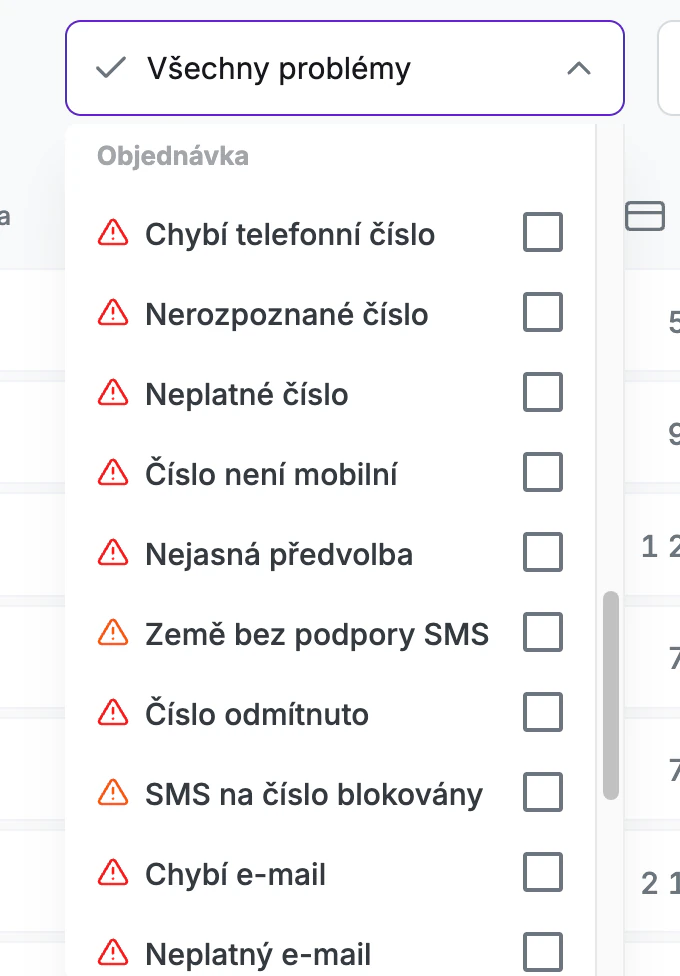
On smaller screens, you'll find the filters under the “All filters” button. It opens the “Filters” panel with the issue, country and carrier filters. The number of active filters is shown right on the button. On a wider screen, the issue filter, and possibly the carrier filter too, sits directly in the list header.
FAQ
- Why did orders without a phone number appear in Order Issues? You have the SMS module switched on, so we check phone numbers too. An order without a number gets the red “Phone number missing” alert. If you find out the number, add it in your e-shop. If not, you can snooze the order.
- Does Foxdeli check older orders too? We check contacts on new orders and when a contact changes. We don't retroactively check orders created before this feature was launched. An alert about an undelivered message, however, is created for every order whose message doesn't arrive.
- Will Foxdeli resend the message after the contact is corrected? We don't resend a message that didn't arrive. Further messages about the order go to the corrected contact. The exception is an SMS waiting for the country code to be added: it's sent after the correction if you correct the number within 6 hours. If you have fallback SMS switched on, an SMS may be sent after an undelivered e-mail.
- Why can't a red alert be confirmed? Messages would still not reach the customer. The red alert disappears once you correct the contact.
Still have questions?
Contact us