Order Issues
Orders that need your attention, all in one place: delivery problems, undelivered e-mails and SMS, and technical issues with shipment tracking.
What Order Issues are
Order Issues shows you the orders that need your attention, so you can reach out to the customer before they start asking. Order Issues are available in all plans, including Basic.
An order ends up here for one of three reasons:
- Shipment issue – the carrier reports a complication with the delivery. For example “Not picked 3 days”, “Last day for pickup”, “Not picked up”, “Not reached”, “Incorrect address”, “Disposition change”, “Rejected takeover”, “Delivery delayed”, “Returning” or “Damaged”.
- Order alert – an e-mail or SMS did not reach the customer, or the order is missing a contact or has an incorrect one. The article Undelivered message alerts describes them in detail.
- Technical issue – Foxdeli cannot track the shipment, for example because the carrier is not connected or the tracking number is wrong. These orders are on a separate “Technical” tab.
Where to find Order Issues
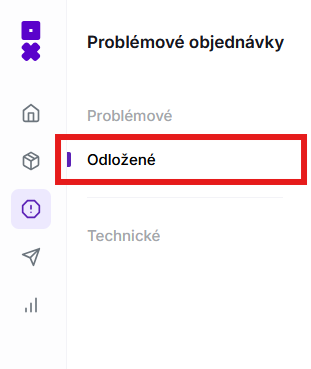
In the main menu, click the exclamation mark icon “Order Issues”, or go straight to https://my.foxdeli.com/en/problematic-orders. When you have an order with an issue, a red dot lights up on the icon. You can also see the latest order issues on the Dashboard in the “Latest issues” block. Its “More” button takes you to the full list.
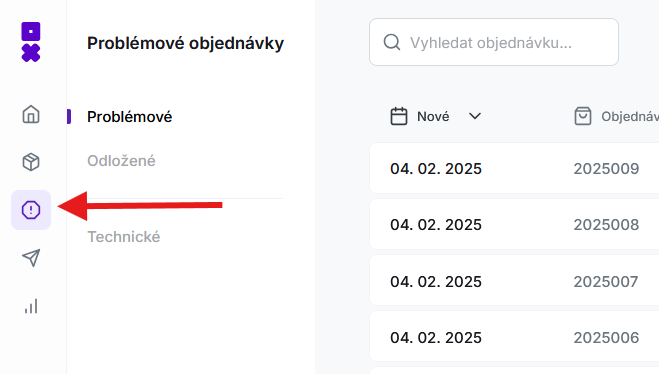
The page has three tabs:
- “Issues” – orders with an issue that you have not snoozed.
- “Snoozed” – orders you have snoozed for later.
- “Technical” – orders whose shipments Foxdeli cannot track.
Order list
Orders are sorted by creation date, newest first. For each one, you see the order number, carrier, customer, destination country, value, rating and status.
- A shipment issue appears in the “Status” column as a red label, for example “Returning”.
- You can recognize an order alert by the red dot next to the status. When you hover over it, you see the “Alert” window with a short description of each issue.
To find a specific order, use the “Search for order...” field.
Filters
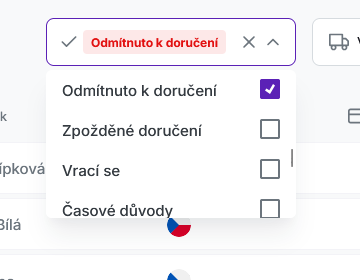
- “All issues” – select one or more issues. Shipment issues are in the “Shipment” group, order alerts in the “Order” group. If you select nothing, you see all orders with issues.
- “All carriers” – only shipments of the selected carrier.
- “All countries” – only orders delivered to the selected country.
You will find all filters under the “All filters” button, which opens the “Filters” panel. The button shows how many filters you have turned on. On a wider screen, the issue filter, and possibly the carrier filter too, is right in the list header. The country filter is only in the panel.
Order detail
Click an order to open its detail:
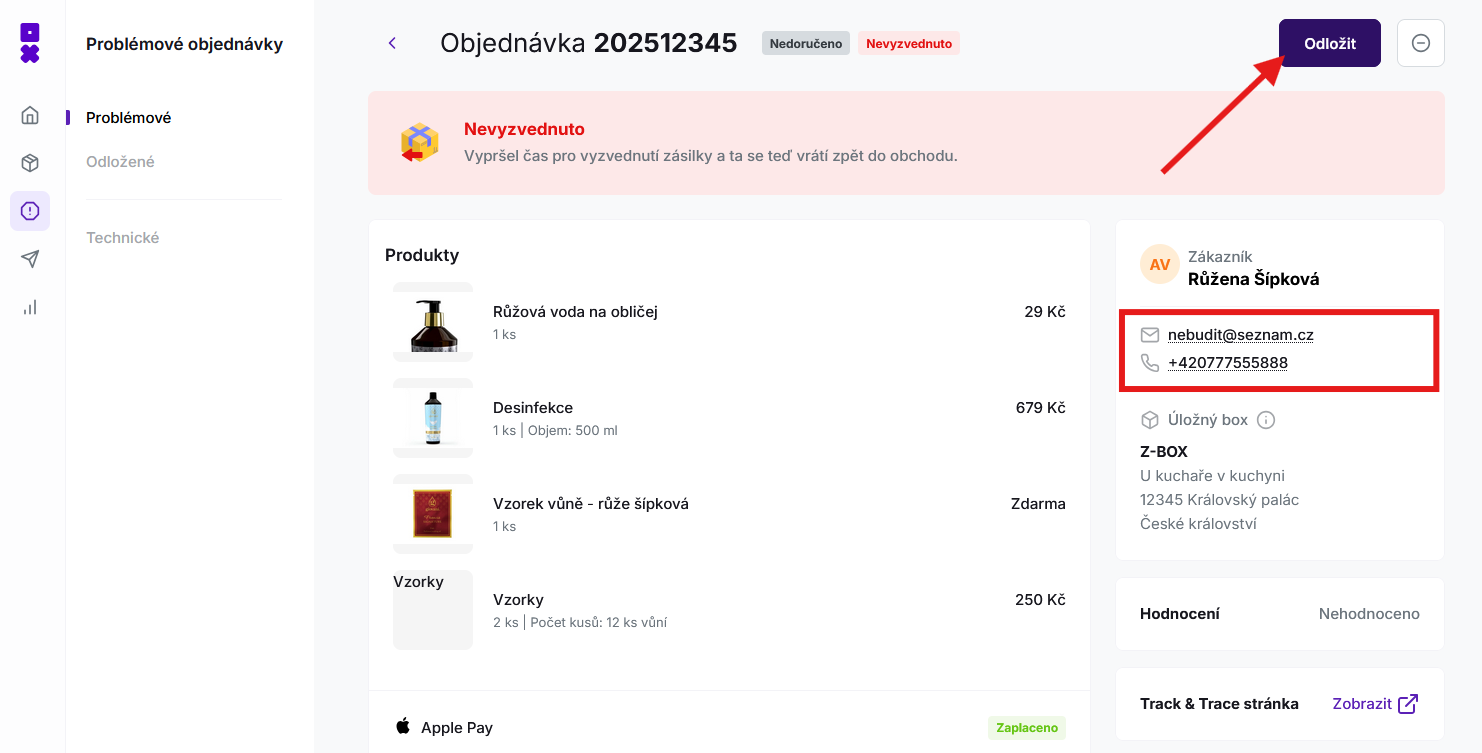
- At the top, there is a box for each issue. For a shipment issue, you see what happened. For an order alert, you also see “What you can do:” and buttons. For a technical issue, a button that takes you to the fix.
- The customer card shows the customer's e-mail and phone number, so you can contact them right away. A warning icon next to a contact means that an alert concerns it.
- The shipment timeline shows the statuses from the carrier as well as the e-mails and SMS sent, and whether they reached the customer. More in the article E-mails and SMS in the order timeline.
Snoozing an order
If you are working on an issue and need time, snooze the order. It disappears from the “Issues” tab and comes back when the snooze period is over.
- In the order detail, click “Snooze”.
- In the “Snooze problematic order for” field, select a date and time.
- In the “Note” field, you can write down what you agreed with the customer.
- Click “Snooze”.
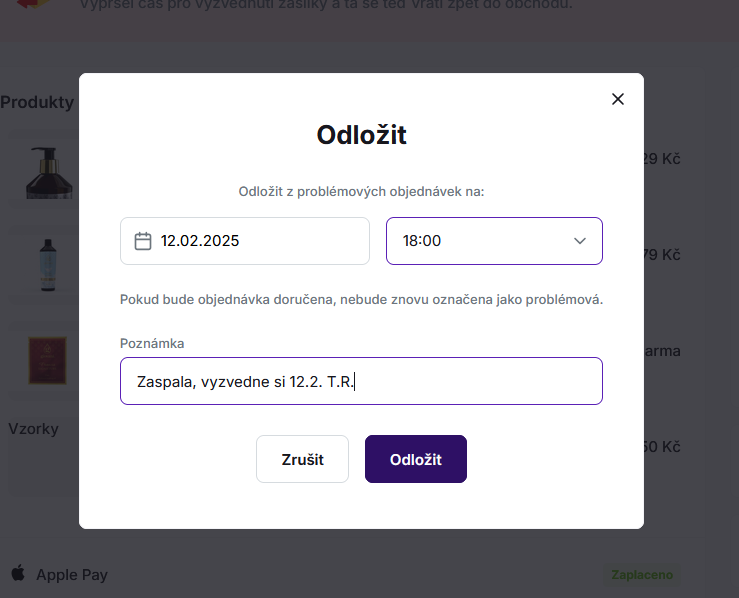
You will find snoozed orders on the “Snoozed” tab. When the set time is up, the order returns to the issues if the problem persists. If the order is delivered in the meantime, it will not be flagged as problematic again.
You only see the “Snooze” button on an order that has an issue and is not snoozed yet.
Undelivered message alerts
When an e-mail or SMS cannot be delivered, or when the order is missing a contact, the order gets an alert. A red alert disappears once you correct the contact in your e-shop. You can confirm an orange alert with the “It's fine” button after you have checked it. The order then disappears from Order Issues unless it has another issue.
Every e-shop sees e-mail alerts. You only see alerts about SMS and phone numbers if you have the SMS module turned on. For an overview of all alerts and what to do about them, see the article Undelivered message alerts.
Technical issues
The “Technical” tab lists orders whose shipments Foxdeli cannot track. The status column shows the reason, for example “Missing configuration”, “Missing credentials”, “Missing tracking number” or “Unknown tracking number”. For some issues, the order detail has a button that takes you to the fix, for example “Connect carrier” or “Add credentials”.
Customer ratings
The “Rating” column shows how the customer rated the delivery. When you hover over the rating, you also see the customer's comment.
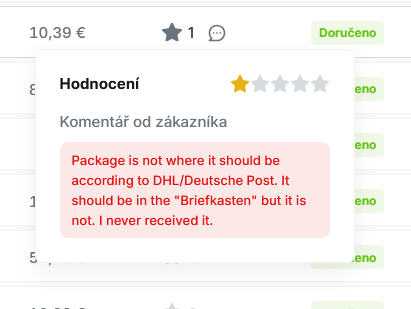
Some e-shops focus mainly on customers who had a bad experience, such as the online pharmacy Pilulka.cz. You can find orders with a bad rating directly in Order Issues: in the “All issues” filter, select “Bad rating” in the “Shipment” group. All ratings are in Orders → Rated. In the “All ratings” filter, you can select, for example, only 1 and 2 stars, or ratings “With comment”. You can then call or write to the customer, apologize, offer a solution or perhaps a discount on their next purchase. Instead of a bad experience, they leave with a good impression and will very likely shop with you again.
For customers to be able to rate the delivery, keep the “Rating” e-mail turned on in Workflow and turn on “Rating” on the “Modules” tab of the Track & Trace page editor.
Still have questions?
Contact us