DHL
How to connect carrier data 🚚
- Go to the carrier portal https://developer.dhl.com and sign in with the Login button in the top right corner. If you don't have login details yet, register first.
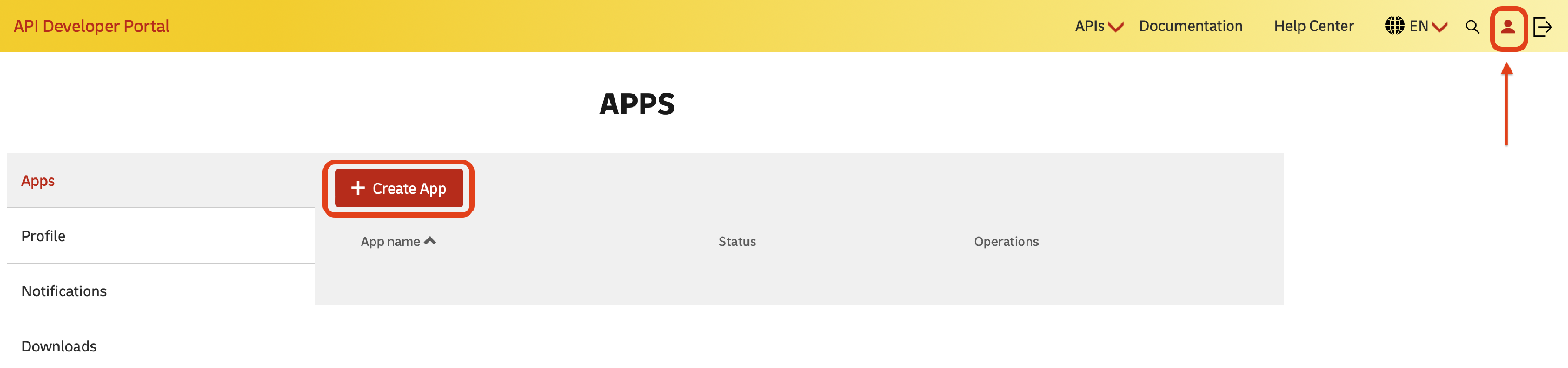
- Click the person icon in the top right corner and then the Create App button.
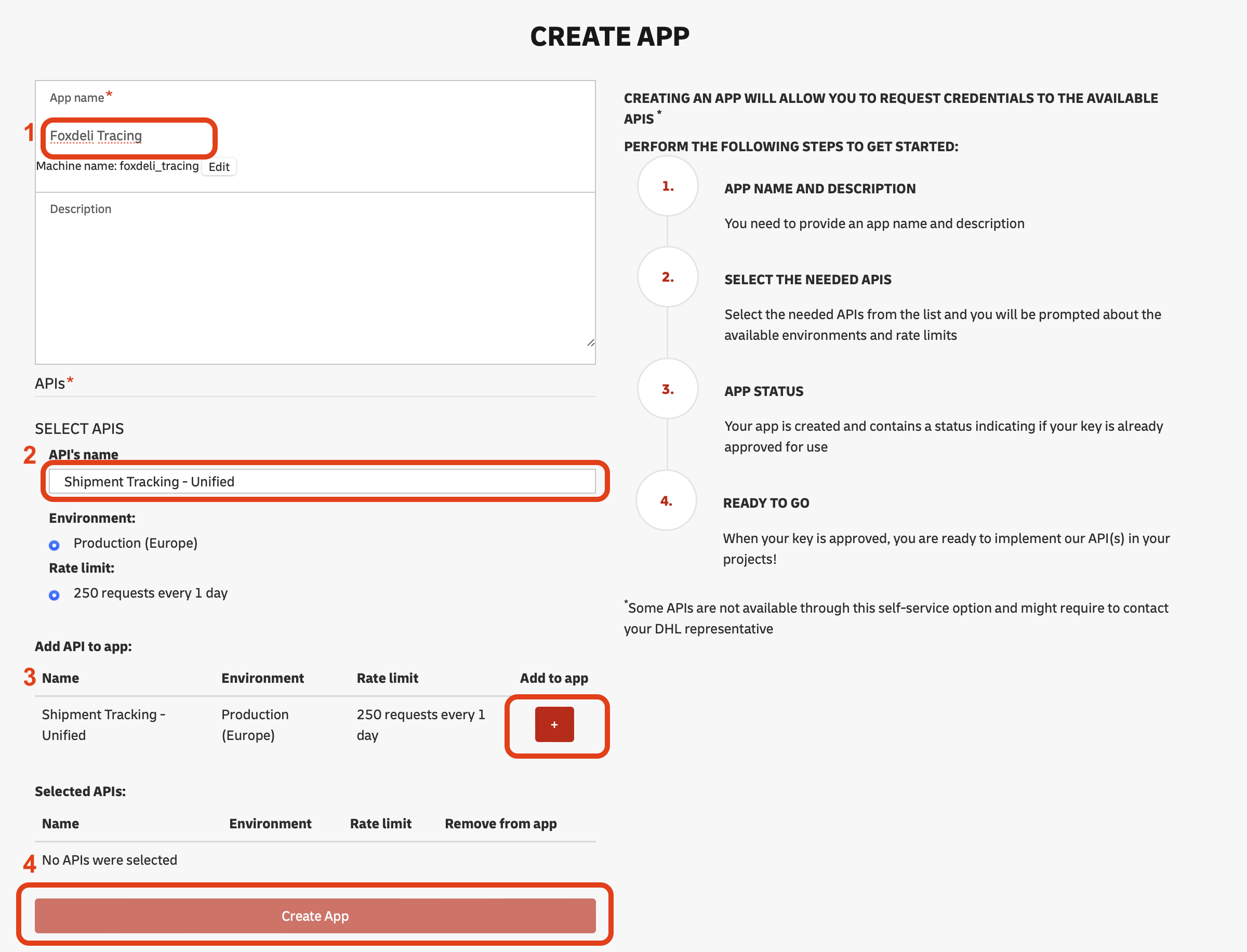
- Fill in the app name (any text).
- In the API's name field, select Shipment Tracking - Unified.
- Click the (+) symbol.
- Click Create App.
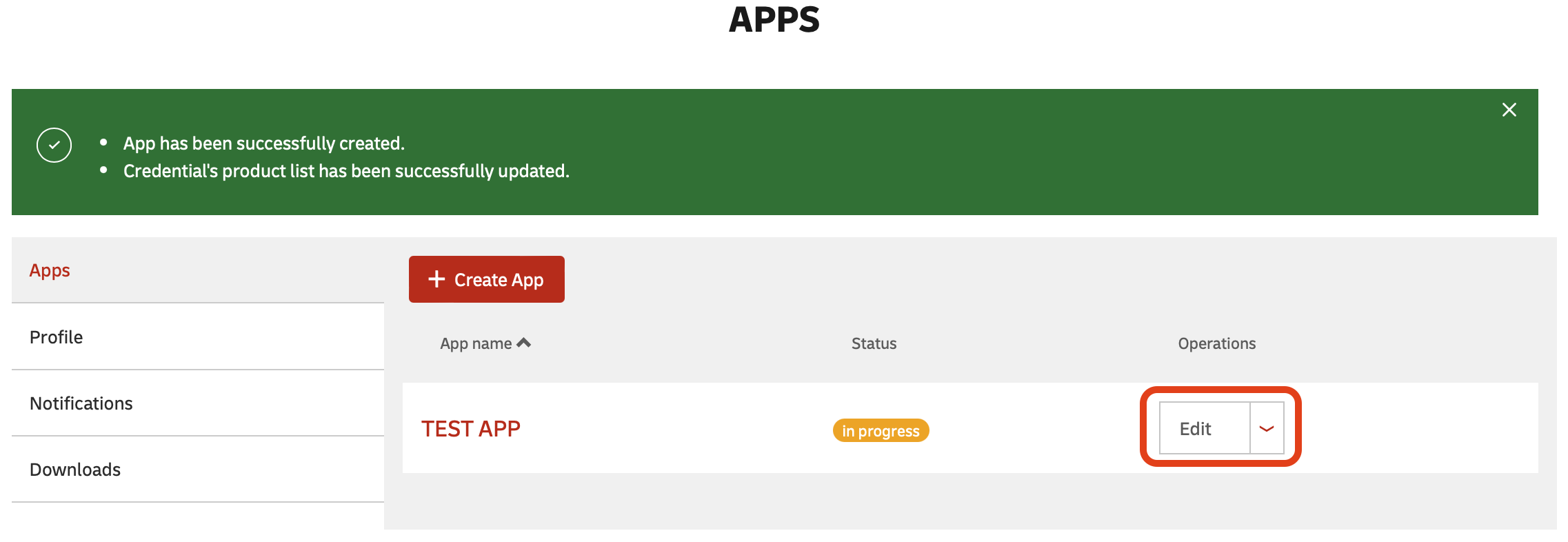
- The API connection is ready. Now click the Edit button next to the connection you just created.
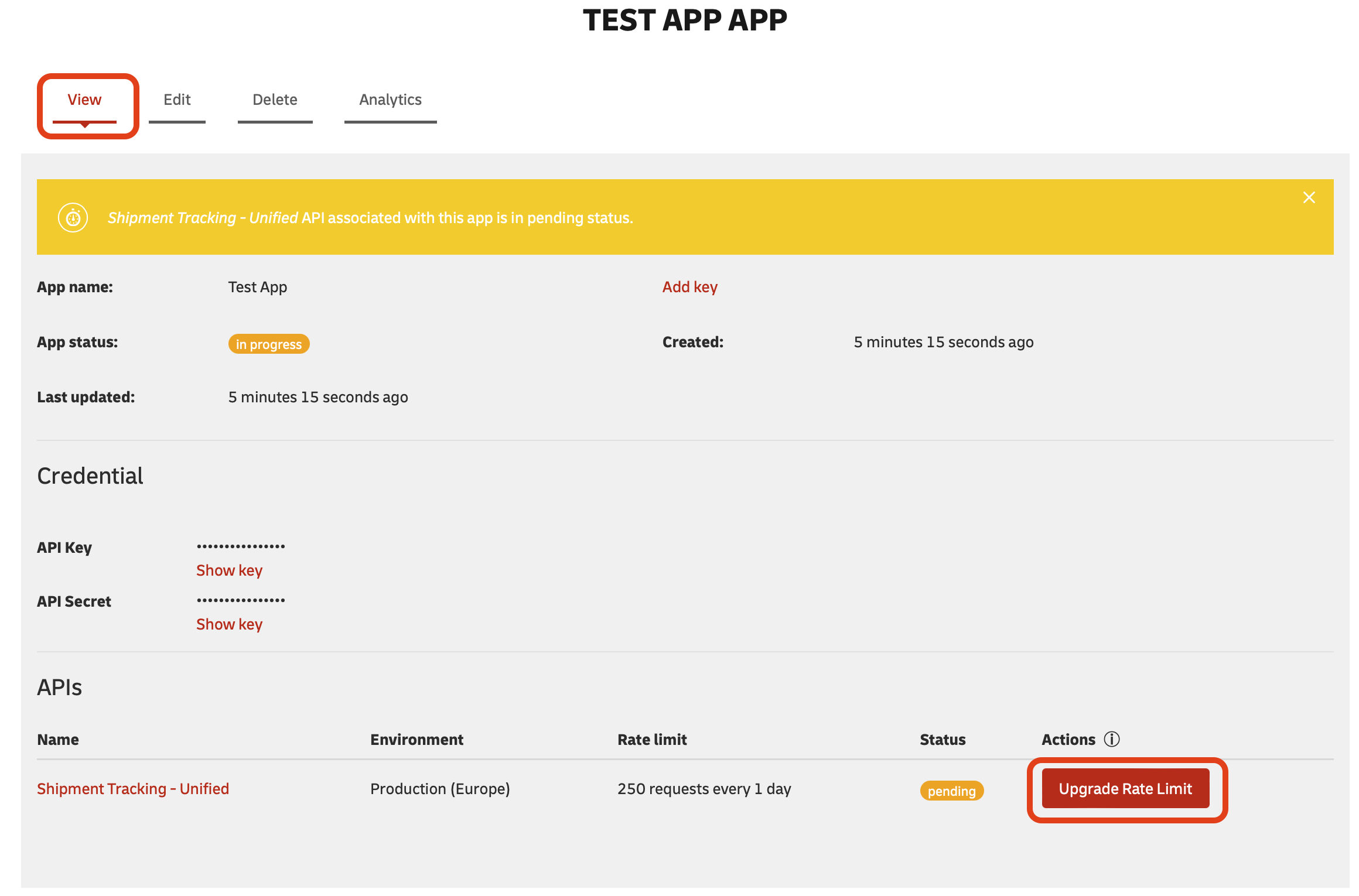
- In the header, click the View tab, then click the Upgrade Rate Limit button at the bottom of the window.
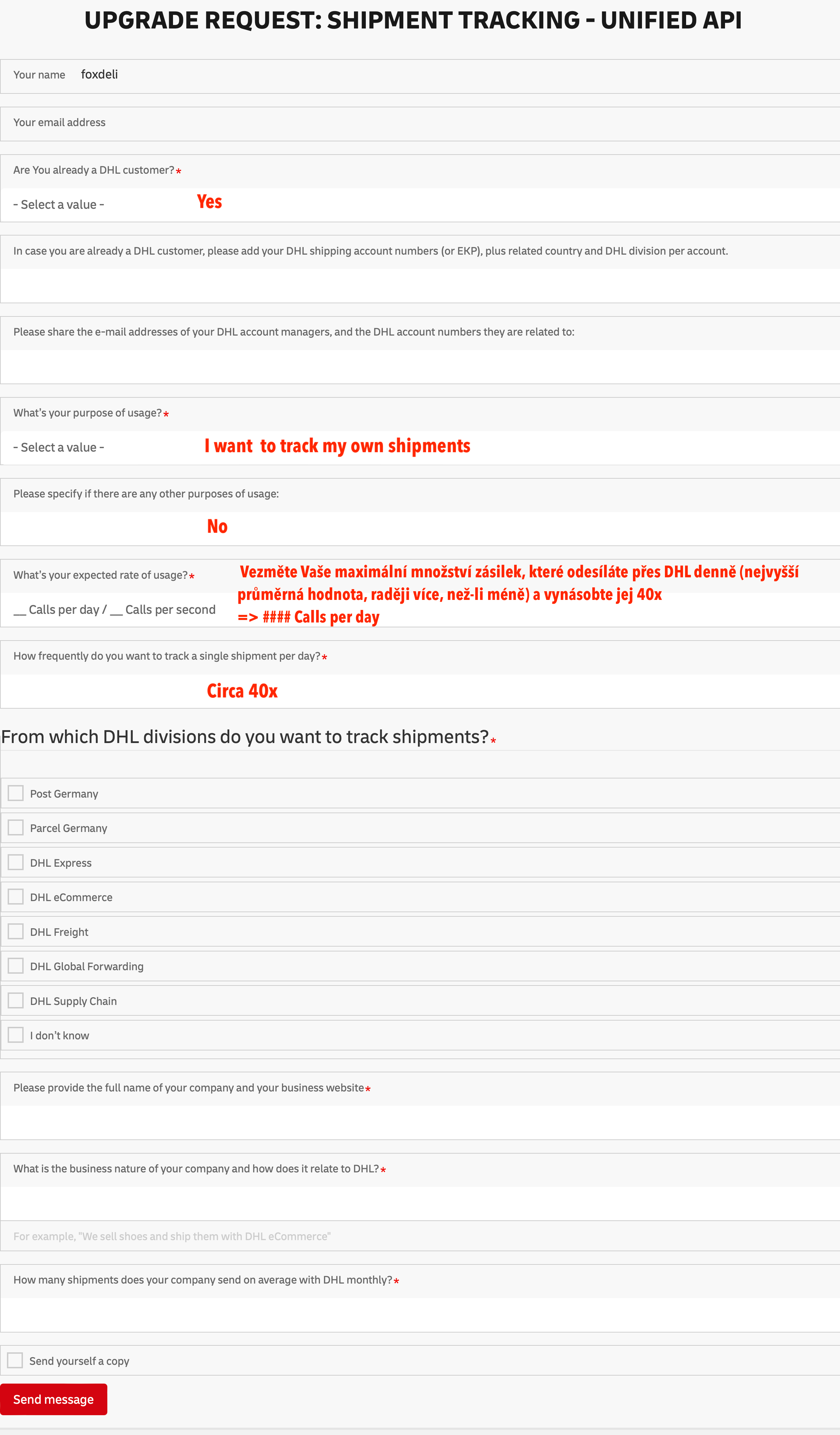
- Please fill in the entire form that follows.
- The most important field is What’s your expected rate of usage. Take the maximum number of shipments you send via DHL per day (the highest average value – better too many than too few) and multiply it by 40.
- For example, if you send 50 DHL shipments a day during your busiest season, enter 2000 (50x40).
- This value defines how many times Foxdeli can check the status of your shipments. If you start sending more shipments in the future, we'll let you know before the limit runs out and increase it.
- Go back to the overview of the connections you generated and click Edit.
- In the header, click the View tab and copy the value of the API Key.

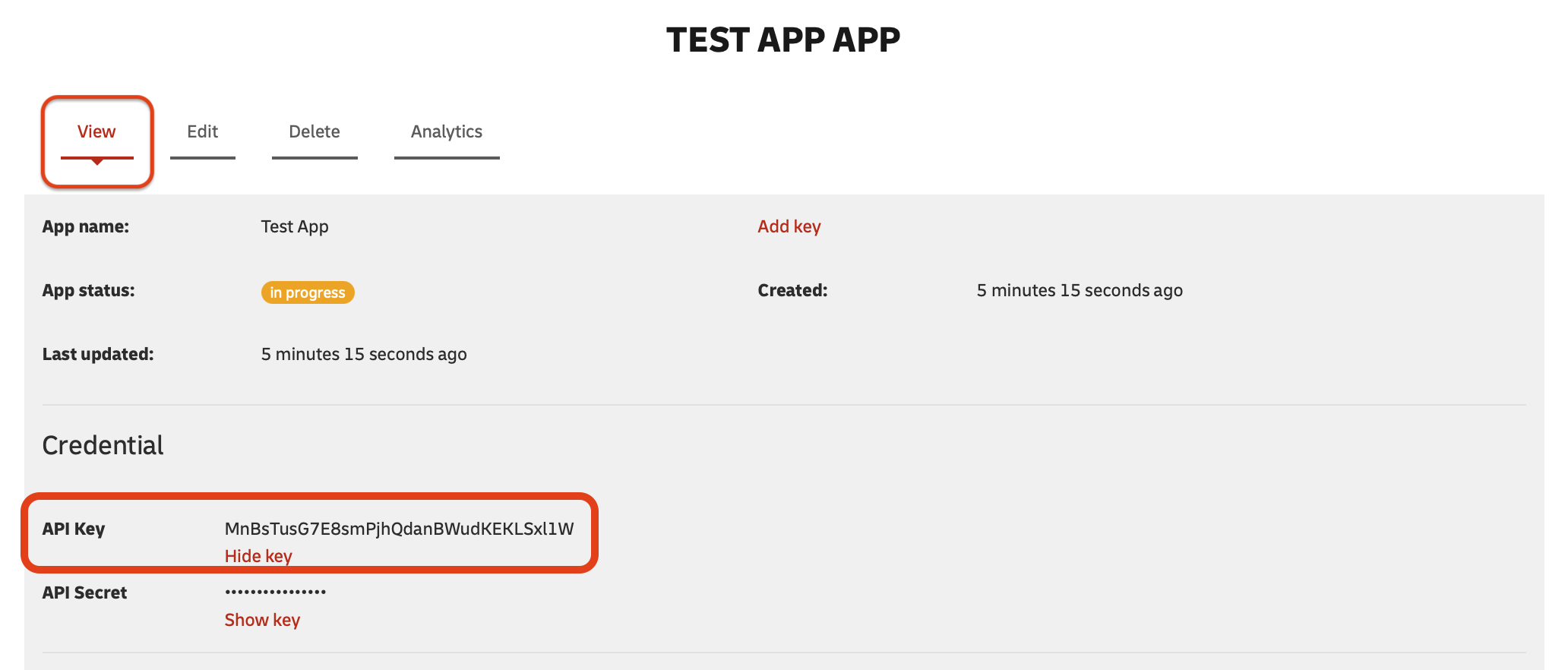
- Then enter your API Key in the Carrier connection form in Foxdeli.
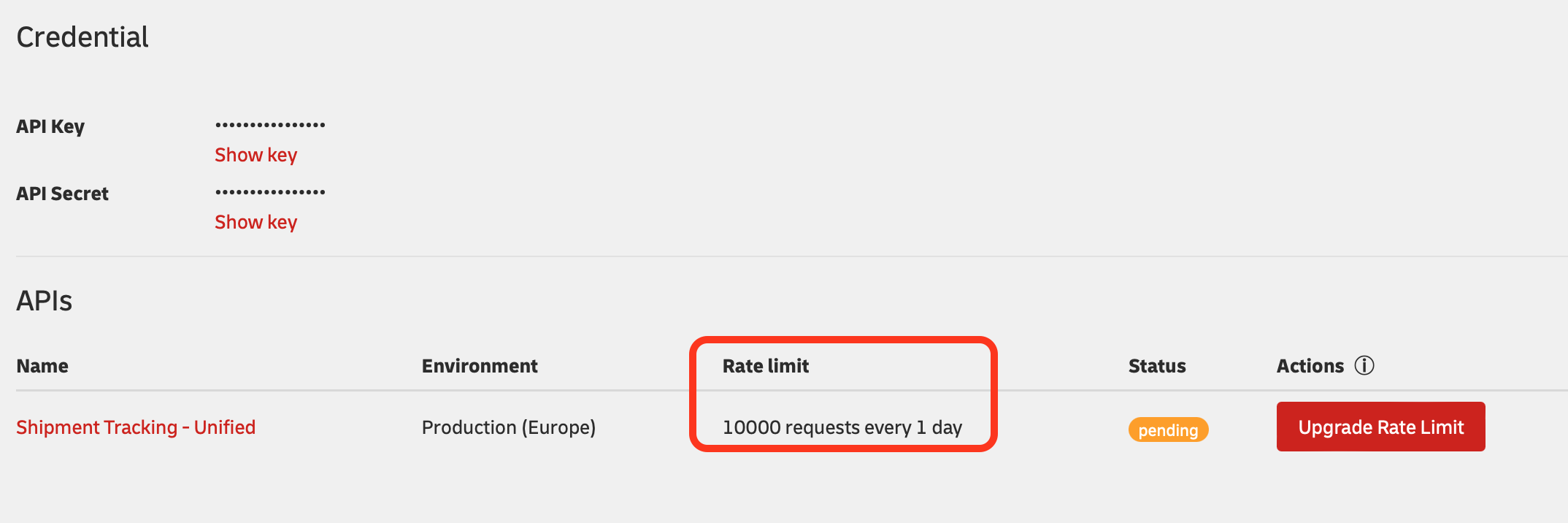
- In the detail of the DHL API connection, don't forget to check the Rate limit value. It should equal your expected number of DHL shipments per day (ideally with plenty of headroom for the future) x 40. If the value is lower, click Upgrade Rate Limit and follow step 7) of this guide.
If you're not sure what to do, message us in the chat and we'll be happy to help.
Still have questions?
Contact usMore articles in this category
- Boxpi
- Budbee
- Fáma Futár
- GLS Italy
- Kuryr 123
- VHL Europe
- PPL
- DODO
- FAN Courier
- Messenger
- GLS
- 123 Kurier
- Cargus
- Czech Post
- DB Schenker
- DPD
- euShipments
- Express One
- FedEx
- Gebrüder Weiss
- Geis
- InPost
- JAPO
- Landmark
- Liftago
- Packeta (Zásilkovna)
- PBH (Pošta bez hranic)
- Poczta Polska
- Raben
- Sameday
- Slovakia Post (Slovenská pošta)
- Speedy
- Spring GDS
- SPS (Slovak Parcel Service)
- Swiss Post
- Toptrans
- UPS
- WE|DO Intime
- WE|DO Uloženka
Articles in this category
- Boxpi
- Budbee
- Fáma Futár
- GLS Italy
- Kuryr 123
- VHL Europe
- PPL
- DODO
- FAN Courier
- Messenger
- GLS
- 123 Kurier
- Cargus
- Czech Post
- DB Schenker
- DPD
- euShipments
- Express One
- FedEx
- Gebrüder Weiss
- Geis
- InPost
- JAPO
- Landmark
- Liftago
- Packeta (Zásilkovna)
- PBH (Pošta bez hranic)
- Poczta Polska
- Raben
- Sameday
- Slovakia Post (Slovenská pošta)
- Speedy
- Spring GDS
- SPS (Slovak Parcel Service)
- Swiss Post
- Toptrans
- UPS
- WE|DO Intime
- WE|DO Uloženka